CATEGORY PAGE (RESOURCES)Facebook Launches 360 Photos
Facebook is now rolling their latest feature – 360 photos in the News Feed, allowing users to view as well as upload pictures taken with 360-degree cameras on both desktop and mobile. Desktop users can click and drag 360 photos to see different parts of the photo while mobile users can swipe the photos or tilt their phones. Facebook announced this in their News Room on 9 June 2016, saying “A 360 photo allows you to see the photo from every angle including above, below, behind and next to you.”
Taken with either a 360-degree camera or panoramic shots taken with iOS and Samsung Galaxy phones. There are also 360-degree photo apps like Google’s Photo Sphere, which allow you to easily take 360 photos with your phones.
You upload a 360 photo to Facebook just like you would with any other photo. They’ll appear on the News Feed just like a normal photo but with a small compass icon in the corner, signifying that you can explore the photo further. Place your followers in the centre of the action, ensuring there’s something to see and experience at every angle.
To see a 360 degree photo in action, take a look at Photographer Mario Testino’s post on 10 June.
Social media is a dynamic persuader of customer perception and a fundamental communication channel. However, it can also be an unruly place that you must be constantly prepared for. At the heart of any social media communication is your brand and it needs safe guarding online just as you would other places.
With over 1.6 billion users on Facebook alone, the potential for social media being incredibly creative or destructive for your business cannot be understated. Having a social media presence and understanding how to deal with the associated problems, is not an option.
Standard public relation rules and guidelines do not apply to the unique problems and crisis that can arise. Developing and implementing a crisis plan specific to social media is critical for an organisation of any size. Here are 8 key steps to consider when developing a social media crisis plan:
- Create a social media policy for your staff
A strong social media policy is your first defence against a crisis. It will help guide your organisation and staff in managing crisis on your various social media channels. - Map it out
Work out your plan of attack. Aside from delegation, how will you deal with trolls, upset customers, misinformation and other problematic media content. Consider creating a visual guide as well which could be easier for staff managing the crisis. - Respond like lightening
In the social media world, a minute late could be hundreds of comments late. Use web-tools such as Social Mention to keep abreast of breaking news and business reports. Often the web will know about a potential crisis for your business before you do.
Pre-empt a crisis if possible. This sends a message that the company feels strongly about its responsibility to the consumer and its ability to weather the storm. - Respond to the customer consistently and regularly
Use the techniques and response protocols outlined in your crisis plan to respond consistently and regularly. Unhappy customers who are ignored are lost and will spread the word. - Be Real
Part of your protocols should be to create genuine statements that address common issues and comments. Disingenuous, standardised PR sound bytes will lose you support. - Use a megaphone
Let your customers and business associates know your position, through as many media channels as you can. Being proactive in taking responsibility will show general care. - Track your crisis
Watch how the crisis is developing. Carefully go through comments to assess the atmosphere. Make sure to cover other sites for conversations you may need to respond to. - Post crisis discussion
Review the event’s issues and advantages with your social media team and what you could do better the next time. Use this discussion to create a generalised plan adaptable to a variety of crisis.
We all know that Google Adwords has a ‘Quality Score’ system which rewards advertisers who create engaging ads with much lower cost per click and more prominent ad placement. Now Twitter has with a similar algorithm to reward the most engaging ads and penalise low-performing ads. Twitter recently confirmed this in their Help Section.
Twitter uses its ads quality score to determine how your ads are displayed, and how much you pay if people engage with them.
A quality score is generally comprised of three broad elements, the three R’s:
Resonance: are consumers engaging with your Tweet? Do they retweet, like, or reply often?
Relevance: is your Tweet related to things a user is interested in?
Recency: is your Tweet fresh? Twitter is a real-time platform about what is happening now, so fresher tweets get higher priority.
Twitter doesn’t currently show this metric so you won’t know your score. It is known that by increasing the quality score on your Twitter ads actually earns you a huge click discount. On average, when you gain one point in the engagement rates on your ads, you will see a 5% decrease in cost per engagement.
How do you ensure a good quality score?
Tweet new material regularly
The number of impressions per day declines over time. And, as time goes on, Twitter is less likely to show older tweets. With an important message create different variations of the ad to be able to tweet something new.
Promote tweets that are already performing well
When you pay to promote high-engagement tweets, it will often give your organic performance a boost.
Relevance is key to engagement
The best way to kill your engagement and quality score is to blast out tweets to a very large audience. Use Twitter’s ad targeting options to restrict your audience to those that really count.
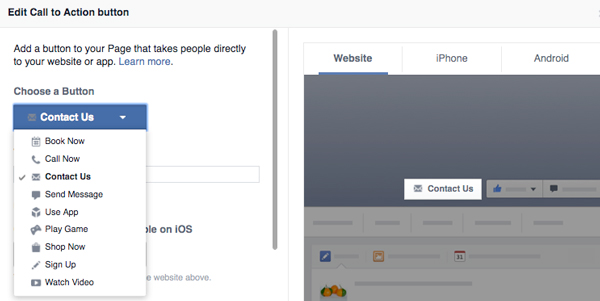
Facebook has introduced a ‘call-to-action’ feature that will help Pages drive business objectives. You can select from a group of call-to-action buttons to add to the top of your Page. The seven calls to action available are:
- Book Now
- Contact Us
- Use App
- Play Game
- Shop Now
- Sign Up
- Watch Video
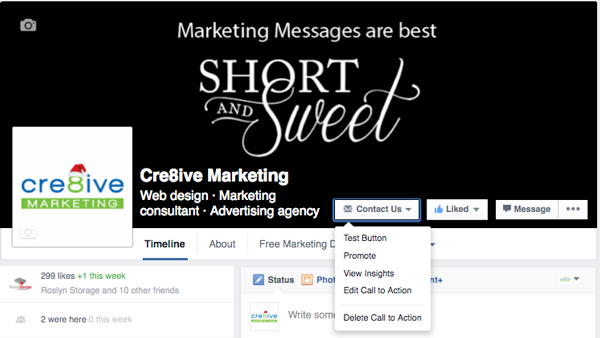
1. Click the “Contact Us” Button on your Facebook page.
2. Click on “Edit Call to Action”
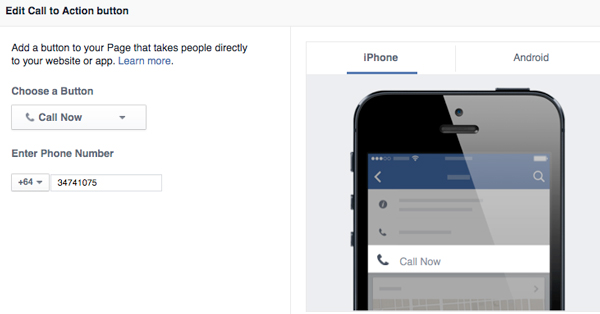
3. This new window will appear and you can choose between the different options for your business. Here we are focusing on the ‘Contact Us’ and the ‘Call Now’ option.
4. Once you have chosen ‘Contact Us’ you can add your landing page. For the mobile user, you can direct them to your Facebook or to your Website.
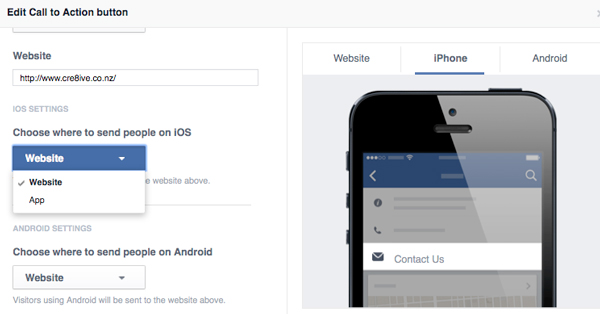
5. If you decide to go with the “Call Now” option, you will need to include your phone number. But keep in mind that this will remove the CTA from your desktop version and be only visible on mobile devices.
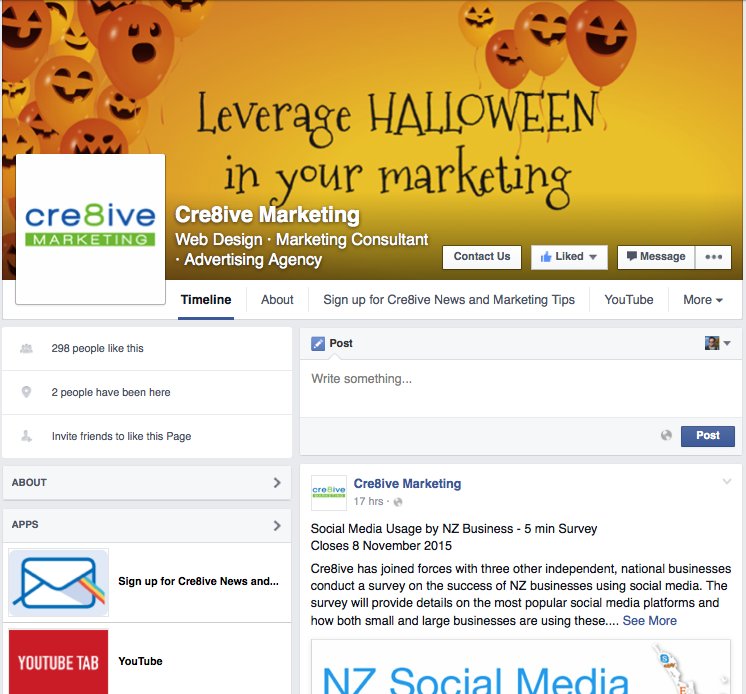
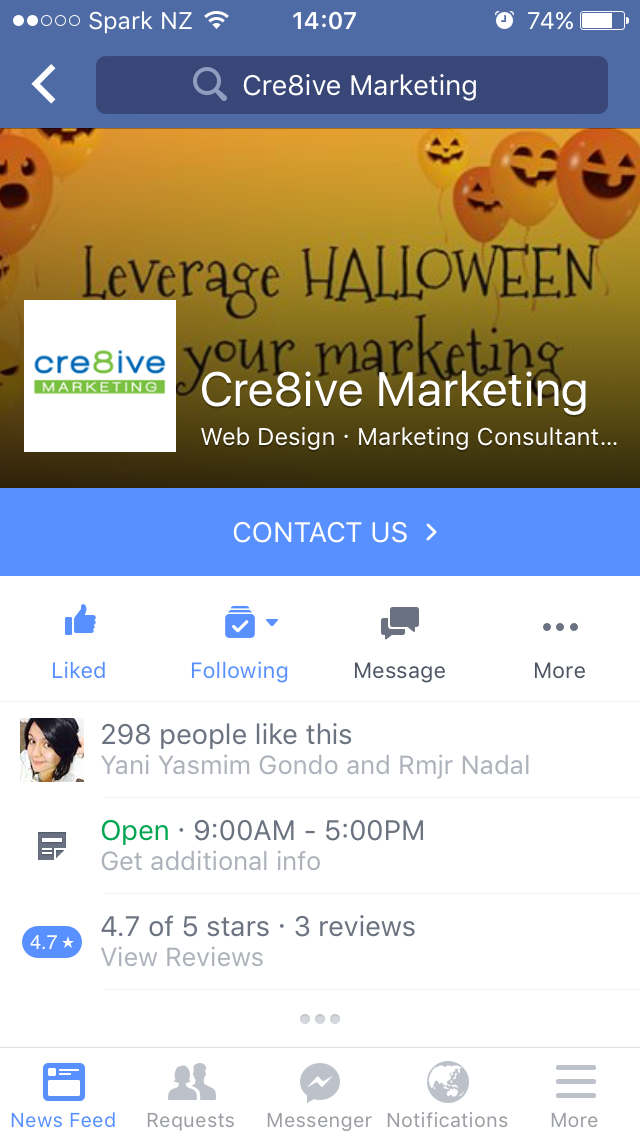
Your Facebook cover image is critical. At a glance, it can showcase your business and range of products/services to prospective clients. With increased mobile usage it is important to take into account how this image will look on smaller screens. The following diagram illustrates the right size and visible areas for Facebook cover photos both desktops and mobiles.
For desktops, the cover photo should be of 851px width and 315 px height. Having an image with resolution higher than 815px x 315 px is not an issue, as Facebook will reduce the size proportionately.
Visible and Non-Visible Areas for Mobile Viewing:
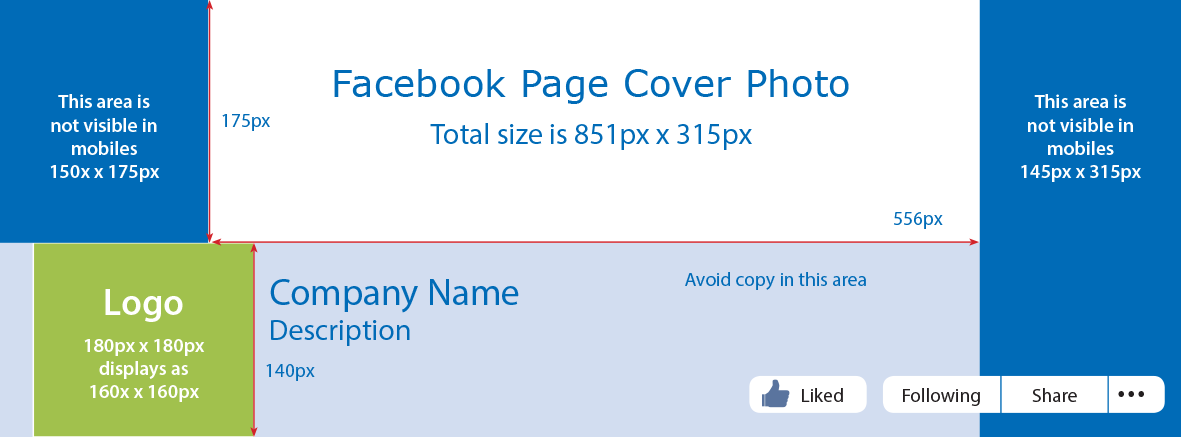
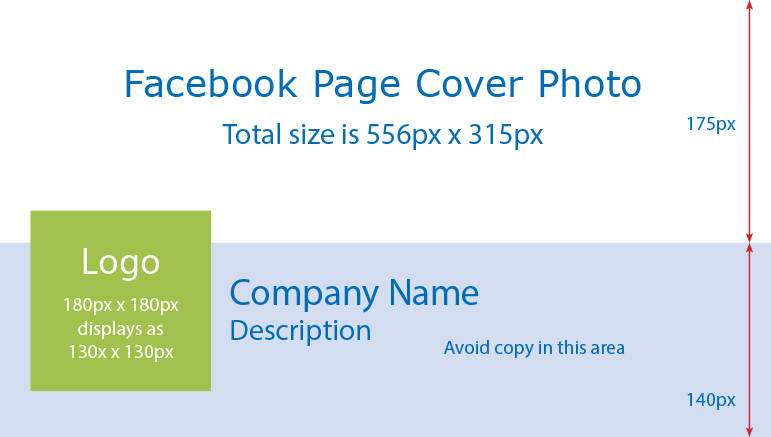
Points to be noted from the diagrams above are:
Green Area – Your business page profile picture or logo goes here. Avoid putting any text or image in this region, as this will be not visible in neither desktops nor mobiles.
Blue Area – The areas which are not visible in mobiles. Many people are not aware of this and tend to make the mistake of putting text or images here.
White Area – This is the only area which is visible in both desktops and mobile.
If you need help with creating images that work for your Business call Philippa 03 474 1075 or email
An actual example of Cre8ive’s Facebook cover image that works in both desktop and mobile: