Twitter was created in March 2006 by Jack Dorsey, Evan Williams, Biz Stone, and Noah Glass and launched in July 2006
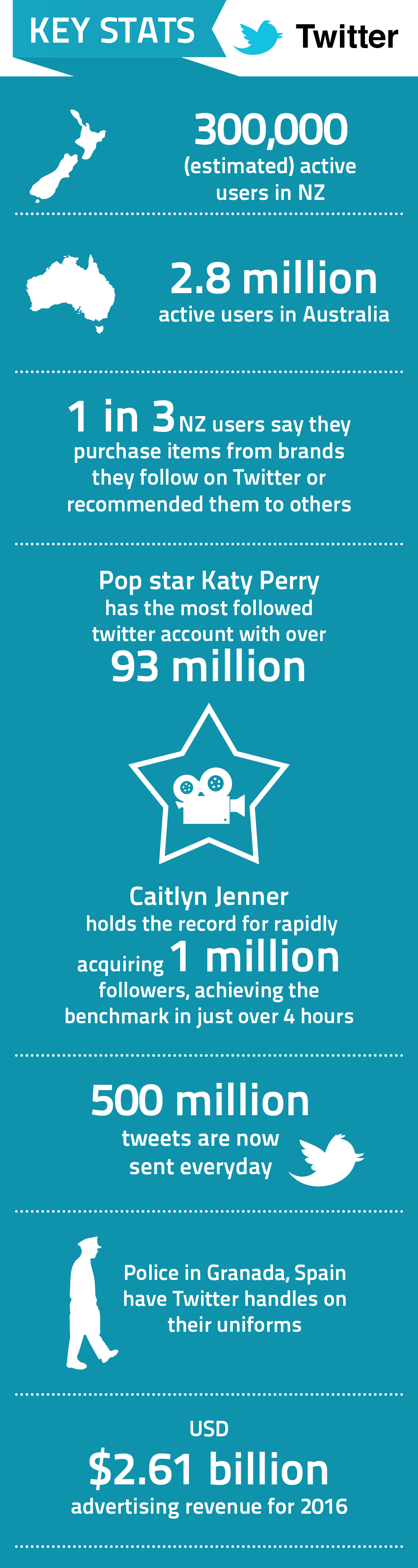
On 15 January 2009, a US Airways flight crashed on NYC’s Hudson River. A photo posted to Twitter broke the news before traditional media, highlighting Twitter’s role in breaking news. Here are some other interesting statistics and facts on Twitter in our infographic.
You might also like to check out the latest statistics on Facebook, LinkedIn and Youtube
If you’ve been on Facebook recently, you may have noticed the bold new design changes in the Pages layout. Overall, the new appearance is more user-friendly and customisable for the business.
Here are the changes you need to know about the new Facebook layout:
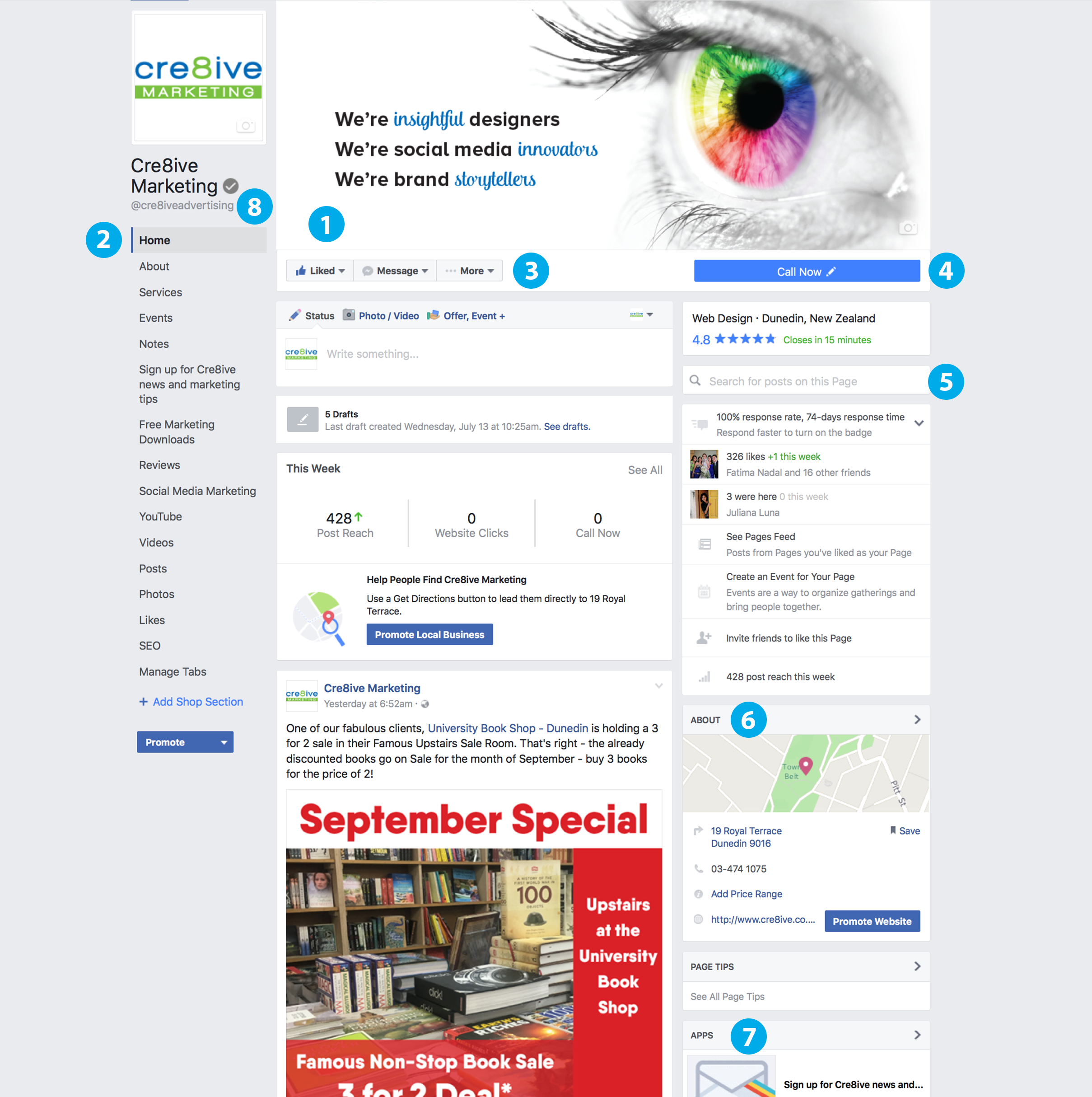
- Visible area increased on cover photo
The most prominent and exciting change we think is on Facebook’s new Page layout is that Facebook has moved the profile picture and business name off the cover image region to the left-hand column, increasing the ‘action’ area. Make sure you take advantage of this new size.
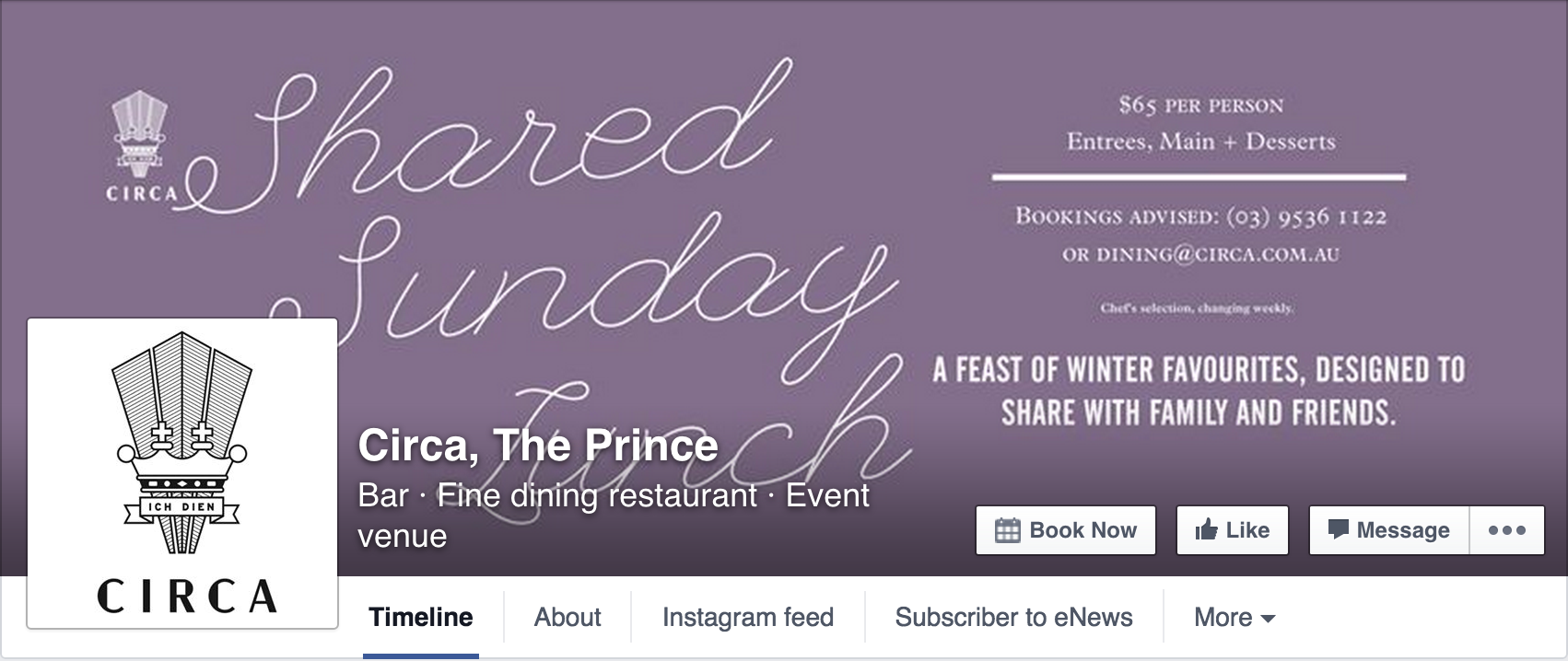
- More visible Page Tabs
The More Tab has been removed and the Page Tabs now appear below the profile picture with every single tab listed. This may seem a little overwhelming to your audience so we recommend removing the ones that aren’t necessary. - Interaction buttons have moved
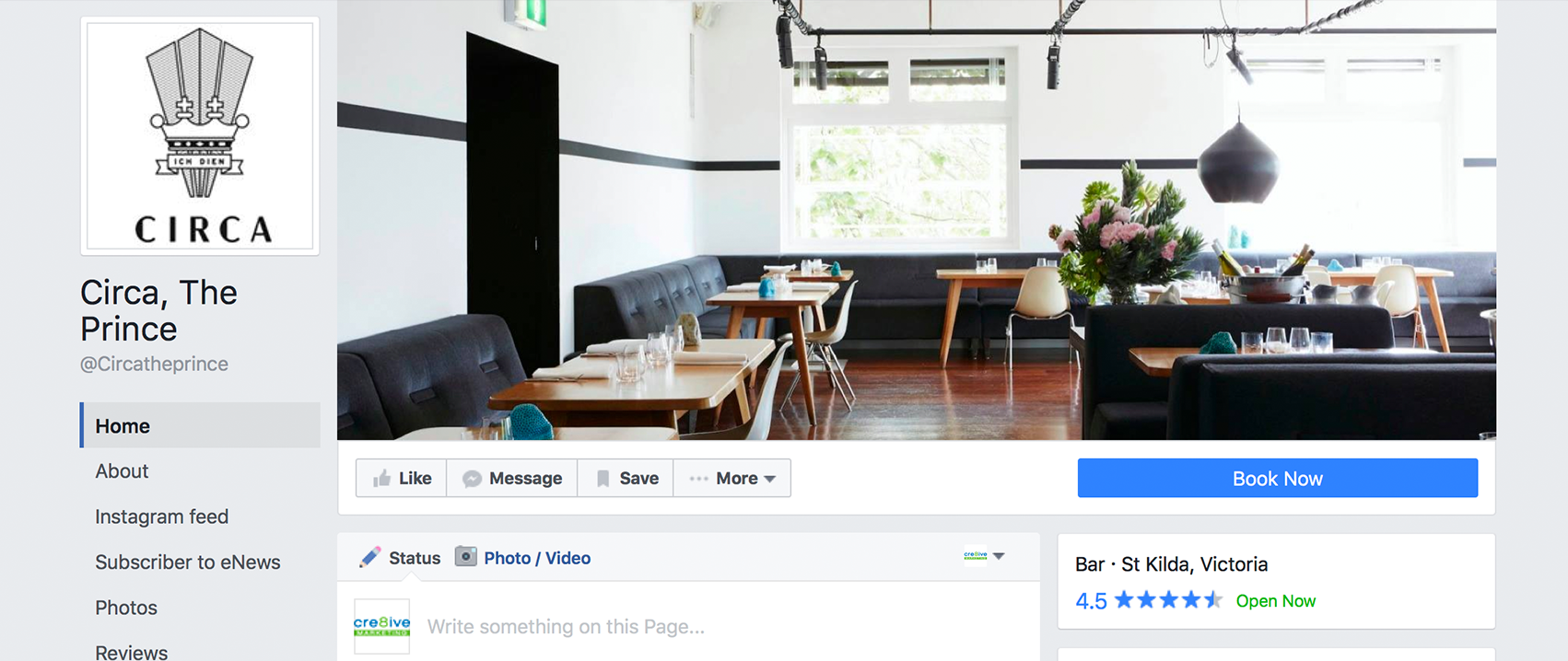
The Message and Share buttons have moved from the corner of your cover photo under the ellipsis and next to the Like Button to the space underneath the cover image; giving your audience one convenient location to interact with your Facebook Page. - Call-to-Action button is bigger and has moved
Another significant change is the Call-to-Action button which is now a long blue strip under the cover photo. The button is also customisable to how you want your audience to reach out to you. Rather than just having the option to contact, the public can now go straight to an app, make a reservation, shop, watch a video or more with just a click of a button. - The new search bar allows you to search for posts on a Page
- The About section has moved to the right-hand column
- Your most important apps appear on the right, with images.
With the long list of tabs and apps on the left, Facebook has used the right column to showcase your most prominent ones. - The addition of @[username]
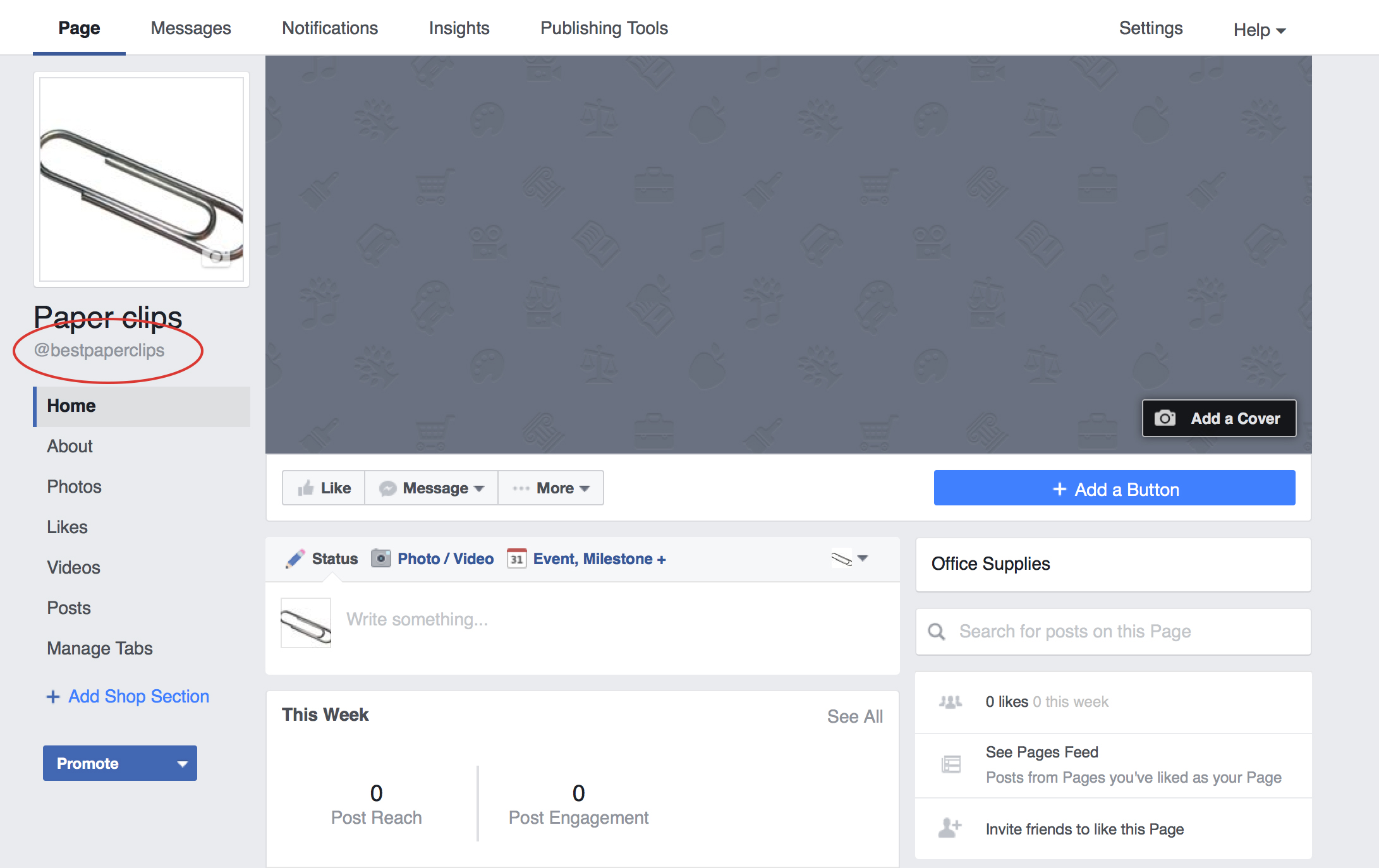
Below the name of your business you will find an @ symbol followed by your Facebook username. This handy addition tells your audience how they can search for you on Facebook or tag you in a post. Learn how you can customise your Facebook username here.
There’s also a few not-so-apparent changes. Notably, your Page’s profile picture will display at 160×160 pixels on computers and 128×128 pixels on smartphones. Additionally, your Page’s cover photo displays at 828 x 315 pixels on computers, 640 x 360 pixels on smartphones and will load fastest as a JPG file that’s 851 x 315 pixels and less than 100 kilobytes. However, for profile pictures and cover photos with your logo or text, you may get a clearer and better photo by using a PNG file.
Keep an eye out for Cre8ive’s insights for more social media sneak peeks and updates.
If you created your Facebook Page few years ago, you would have gotten a hard-to-type link that looks something like this:

This is not ideal and should be updated to make it easier for users to find you. In addition, if you refer visitors to your Facebook page on printed material, consequently requiring them to type out each character of your URL to find you, a vanity URL will simplify the process.
There are several ways to change your Facebook URL.
Go to http://www.Facebook.com/username to set your vanity URL. It will take you to a page that looks like this where you can select the page you want to edit and make the switch to a more attractive URL.
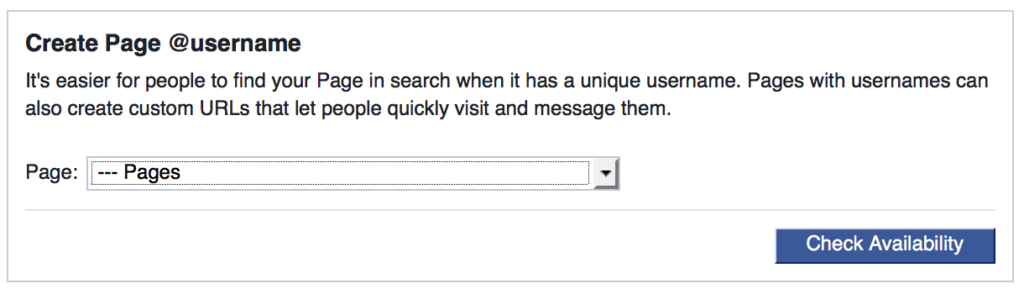
But be careful as you can very easily change the username of your Personal Profile to the one you wanted for your Fan Page. Also note that you can only change your Page’s username once, so make sure it’s the one you want. You may want to check on other social media platform that you are either on or considering creating a presence to ensure consistency in URLs between platforms.
Another way you can change your page’s URL is by going to the page and selecting Edit Page Info under the More tab. Here you can change the name, URL, category, description or contact information of your Page.
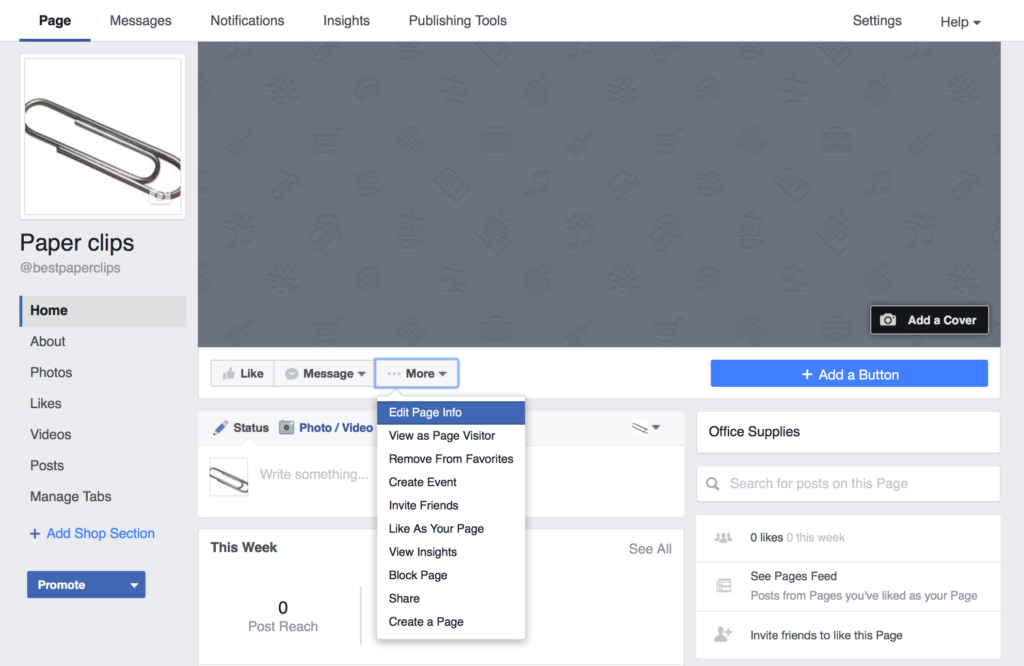
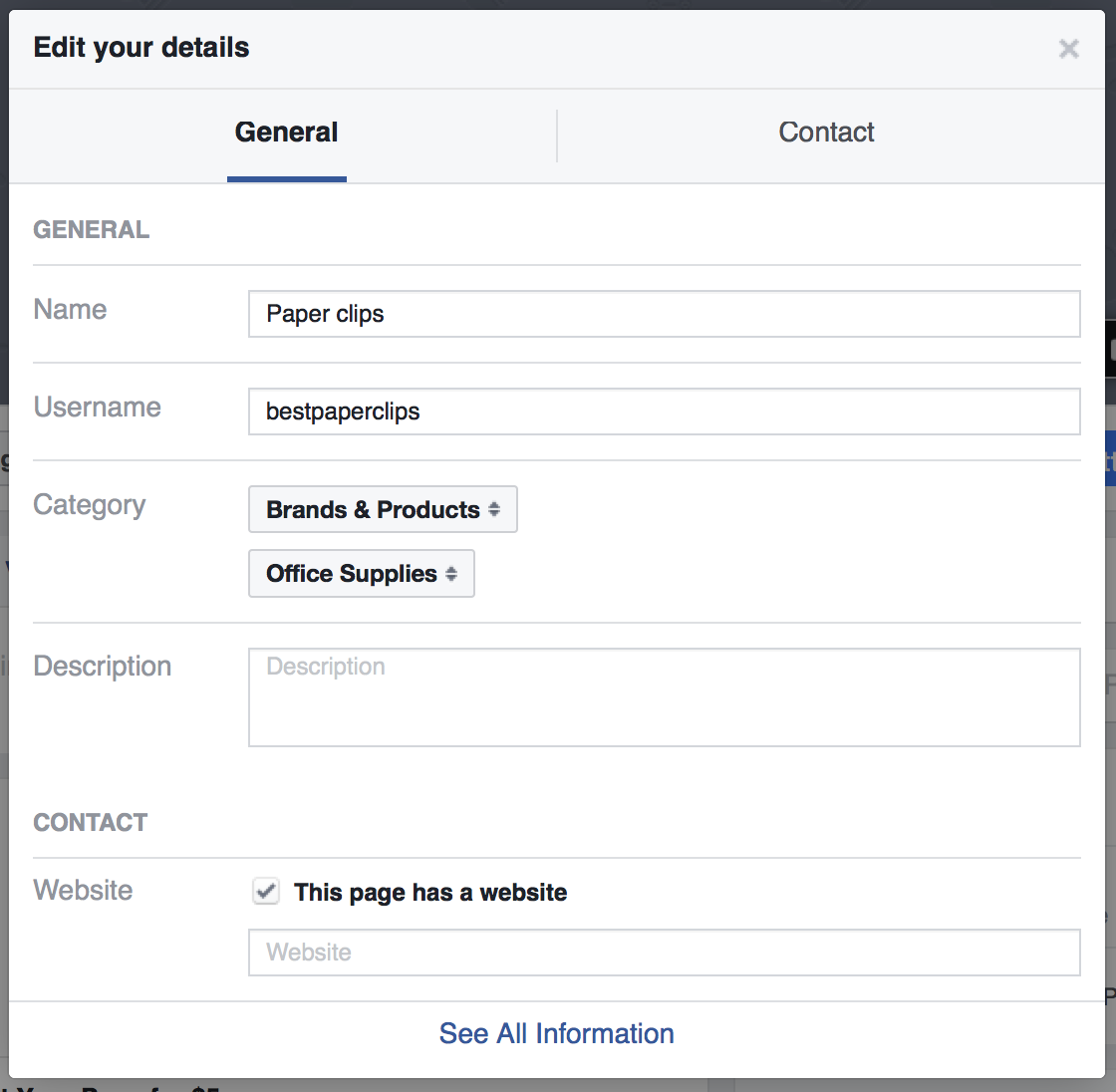
Within seconds you can take your page’s URL from this long URL
to this branded URL link

You will also see the username in the left hand column change as well. This means that people can now easily search or tag your page in a post by putting the @ symbol before the name of your page.
If you are starting a Fan Page the process is even simpler. After choosing your page type and category, a box will immediately pop up where you can set your page’s custom URL.
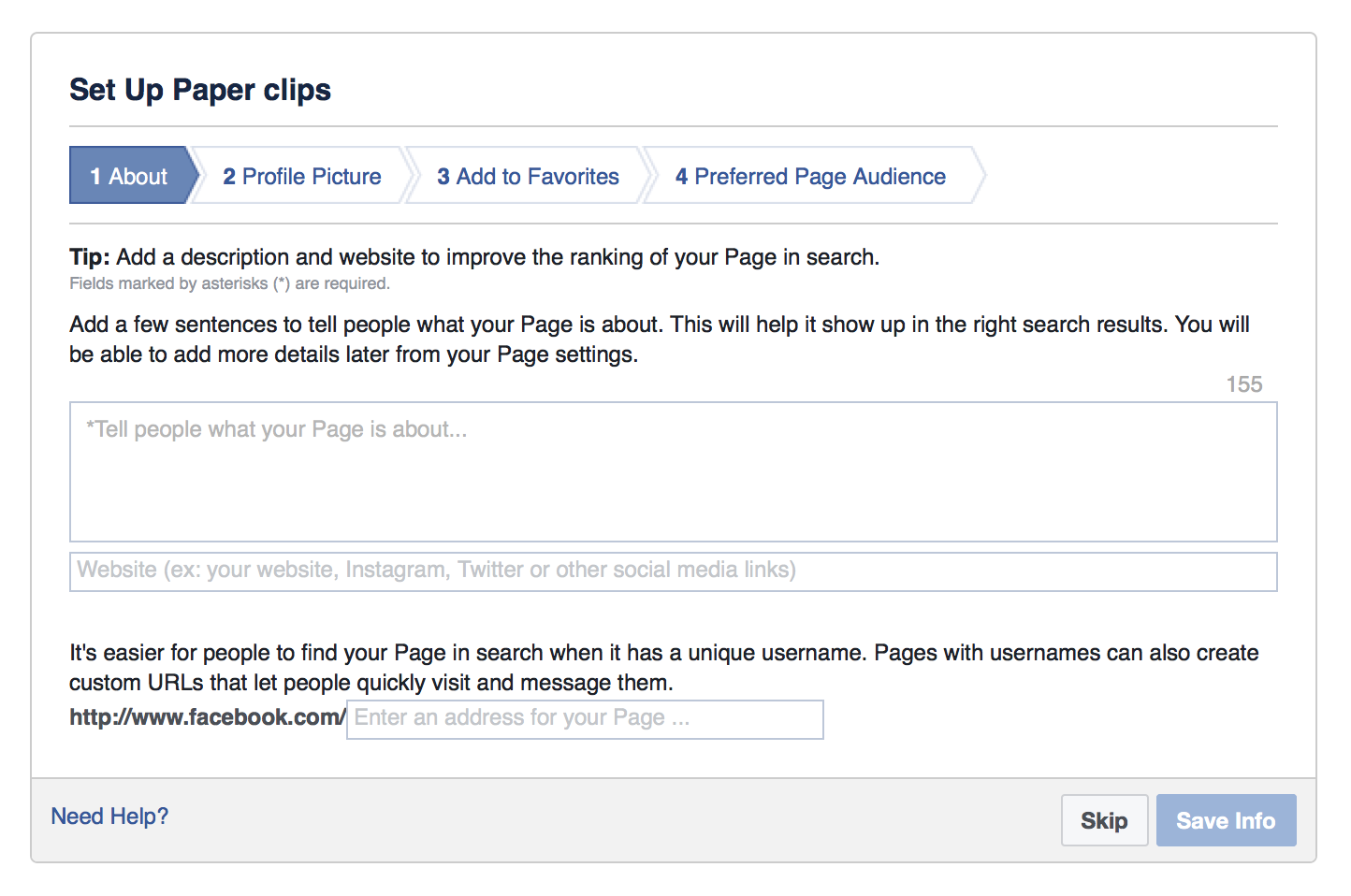
Given how easy it is to claim your Facebook Page’s URL, there is no excuse not to make the change.
Extension of the ‘Non-profits’ Tool on Facebook
Facebook for non-profits was launched in November 2015, a resource designed to help non-profits better communicate their story on the social network. Now Facebook is rolling out the ability for people to fund raise on behalf of non-profit organisations. This user-focused tool is an extension of the tool launched last year and can be used for fundraising and volunteer efforts that combine an online and offline component.
The Alzheimer’s Association successfully used Facebook as part of their campaign to promote their ‘Walk to End Alzheimer’s’ event, designed to raise awareness and funds for Alzheimer’s care, support and research. The Facebook campaign aimed to recruit participants for the walk, as well as fundraising for the organisation. Part of their success was driven by using a personal approach and encouraging participants to share their stories and selfies.
With this new tool, anyone on Facebook will be able to create a page to raise money for US-based non-profit organisations and non-profits can also organise users to raise funds on their behalf. Amongst those who have joined so far includes Unicef, the Malala Fund and Oxfam.
Less Clicks to Donate
Friends can donate in a few taps without leaving Facebook making it easier to collect donations.
Find New Supporters Easily
Each time someone donates they are prompted to share and invite their friends. Shares and re-shares also contain a donate button making it easy to donate right from News Feed.
Fundraising has had past success on Facebook. In 2014 the Ice Bucket Challenge raised US$115 million for ALS research. (to find effective treatments and a cure for Lou Gehrig’s Disease.)
At first, only a small amount of users can (around 1%) can access the feature, however a wider roll out is expected for US users in the following weeks. Presumably if this tool works well, Facebook will roll it out to other countries including New Zealand.
Facebook is now rolling their latest feature – 360 photos in the News Feed, allowing users to view as well as upload pictures taken with 360-degree cameras on both desktop and mobile. Desktop users can click and drag 360 photos to see different parts of the photo while mobile users can swipe the photos or tilt their phones. Facebook announced this in their News Room on 9 June 2016, saying “A 360 photo allows you to see the photo from every angle including above, below, behind and next to you.”
Taken with either a 360-degree camera or panoramic shots taken with iOS and Samsung Galaxy phones. There are also 360-degree photo apps like Google’s Photo Sphere, which allow you to easily take 360 photos with your phones.
You upload a 360 photo to Facebook just like you would with any other photo. They’ll appear on the News Feed just like a normal photo but with a small compass icon in the corner, signifying that you can explore the photo further. Place your followers in the centre of the action, ensuring there’s something to see and experience at every angle.
To see a 360 degree photo in action, take a look at Photographer Mario Testino’s post on 10 June.
Social media is a dynamic persuader of customer perception and a fundamental communication channel. However, it can also be an unruly place that you must be constantly prepared for. At the heart of any social media communication is your brand and it needs safe guarding online just as you would other places.
With over 1.6 billion users on Facebook alone, the potential for social media being incredibly creative or destructive for your business cannot be understated. Having a social media presence and understanding how to deal with the associated problems, is not an option.
Standard public relation rules and guidelines do not apply to the unique problems and crisis that can arise. Developing and implementing a crisis plan specific to social media is critical for an organisation of any size. Here are 8 key steps to consider when developing a social media crisis plan:
- Create a social media policy for your staff
A strong social media policy is your first defence against a crisis. It will help guide your organisation and staff in managing crisis on your various social media channels. - Map it out
Work out your plan of attack. Aside from delegation, how will you deal with trolls, upset customers, misinformation and other problematic media content. Consider creating a visual guide as well which could be easier for staff managing the crisis. - Respond like lightening
In the social media world, a minute late could be hundreds of comments late. Use web-tools such as Social Mention to keep abreast of breaking news and business reports. Often the web will know about a potential crisis for your business before you do.
Pre-empt a crisis if possible. This sends a message that the company feels strongly about its responsibility to the consumer and its ability to weather the storm. - Respond to the customer consistently and regularly
Use the techniques and response protocols outlined in your crisis plan to respond consistently and regularly. Unhappy customers who are ignored are lost and will spread the word. - Be Real
Part of your protocols should be to create genuine statements that address common issues and comments. Disingenuous, standardised PR sound bytes will lose you support. - Use a megaphone
Let your customers and business associates know your position, through as many media channels as you can. Being proactive in taking responsibility will show general care. - Track your crisis
Watch how the crisis is developing. Carefully go through comments to assess the atmosphere. Make sure to cover other sites for conversations you may need to respond to. - Post crisis discussion
Review the event’s issues and advantages with your social media team and what you could do better the next time. Use this discussion to create a generalised plan adaptable to a variety of crisis.
We all know that Google Adwords has a ‘Quality Score’ system which rewards advertisers who create engaging ads with much lower cost per click and more prominent ad placement. Now Twitter has with a similar algorithm to reward the most engaging ads and penalise low-performing ads. Twitter recently confirmed this in their Help Section.
Twitter uses its ads quality score to determine how your ads are displayed, and how much you pay if people engage with them.
A quality score is generally comprised of three broad elements, the three R’s:
Resonance: are consumers engaging with your Tweet? Do they retweet, like, or reply often?
Relevance: is your Tweet related to things a user is interested in?
Recency: is your Tweet fresh? Twitter is a real-time platform about what is happening now, so fresher tweets get higher priority.
Twitter doesn’t currently show this metric so you won’t know your score. It is known that by increasing the quality score on your Twitter ads actually earns you a huge click discount. On average, when you gain one point in the engagement rates on your ads, you will see a 5% decrease in cost per engagement.
How do you ensure a good quality score?
Tweet new material regularly
The number of impressions per day declines over time. And, as time goes on, Twitter is less likely to show older tweets. With an important message create different variations of the ad to be able to tweet something new.
Promote tweets that are already performing well
When you pay to promote high-engagement tweets, it will often give your organic performance a boost.
Relevance is key to engagement
The best way to kill your engagement and quality score is to blast out tweets to a very large audience. Use Twitter’s ad targeting options to restrict your audience to those that really count.
Facebook has introduced a ‘call-to-action’ feature that will help Pages drive business objectives. You can select from a group of call-to-action buttons to add to the top of your Page. The seven calls to action available are:
- Book Now
- Contact Us
- Use App
- Play Game
- Shop Now
- Sign Up
- Watch Video
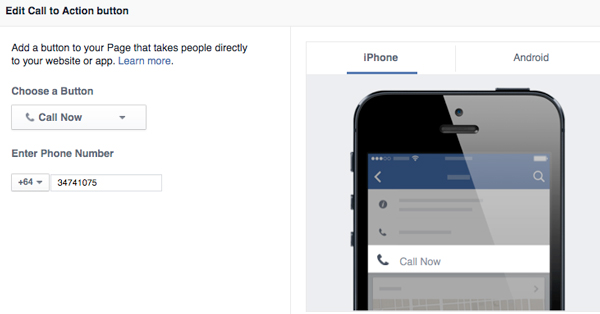
1. Click the “Contact Us” Button on your Facebook page.
2. Click on “Edit Call to Action”
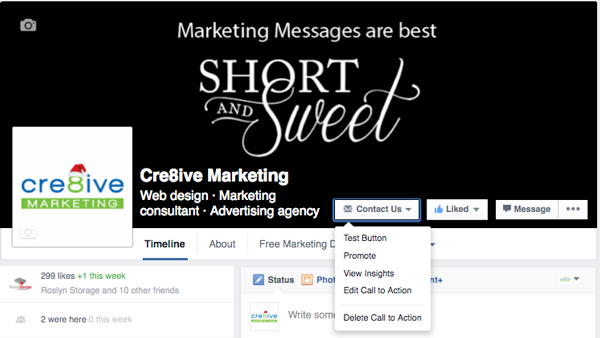
3. This new window will appear and you can choose between the different options for your business. Here we are focusing on the ‘Contact Us’ and the ‘Call Now’ option.
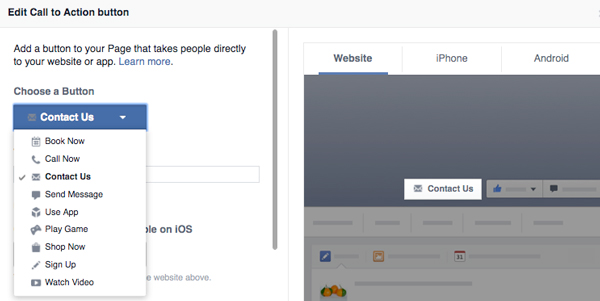
4. Once you have chosen ‘Contact Us’ you can add your landing page. For the mobile user, you can direct them to your Facebook or to your Website.
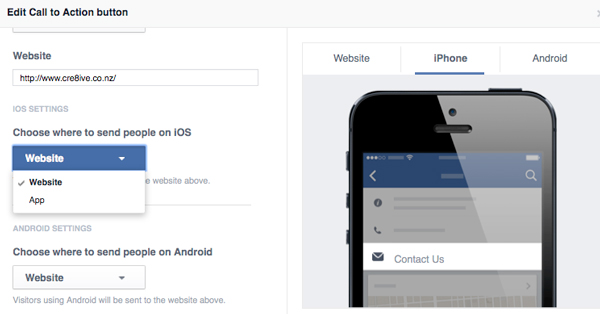
5. If you decide to go with the “Call Now” option, you will need to include your phone number. But keep in mind that this will remove the CTA from your desktop version and be only visible on mobile devices.
Your Facebook cover image is critical. At a glance, it can showcase your business and range of products/services to prospective clients. With increased mobile usage it is important to take into account how this image will look on smaller screens. The following diagram illustrates the right size and visible areas for Facebook cover photos both desktops and mobiles.
For desktops, the cover photo should be of 851px width and 315 px height. Having an image with resolution higher than 815px x 315 px is not an issue, as Facebook will reduce the size proportionately.
Visible and Non-Visible Areas for Mobile Viewing:
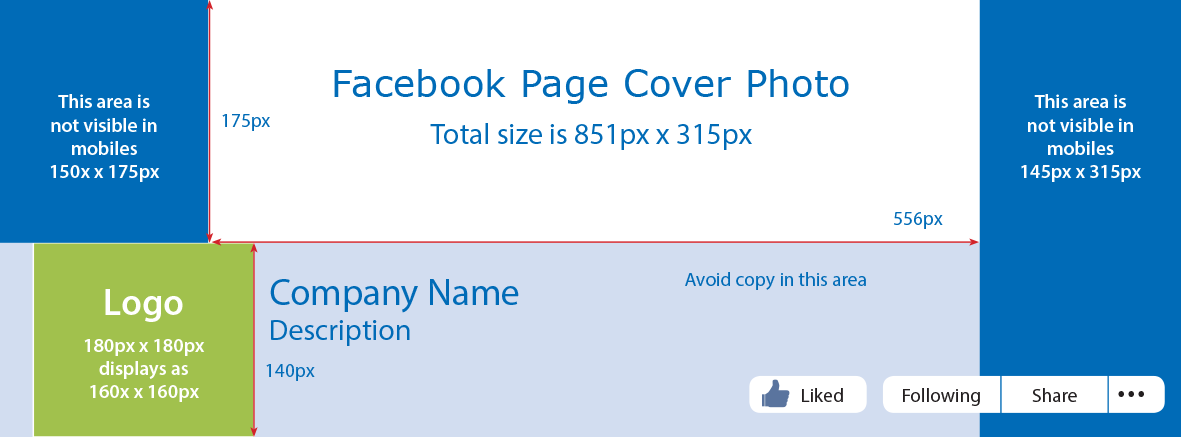
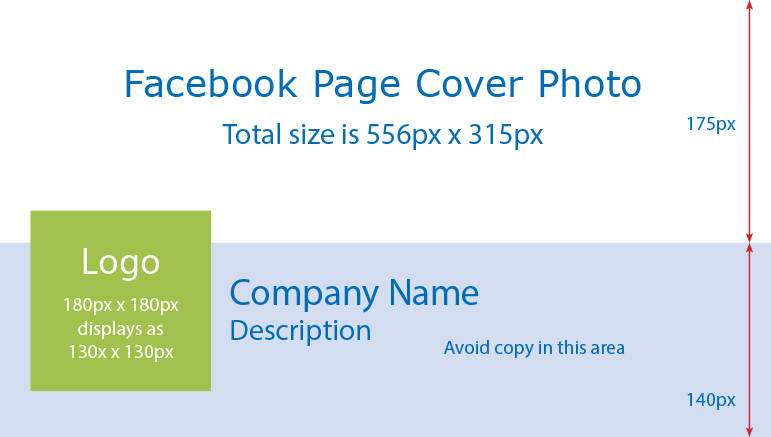
Points to be noted from the diagrams above are:
Green Area – Your business page profile picture or logo goes here. Avoid putting any text or image in this region, as this will be not visible in neither desktops nor mobiles.
Blue Area – The areas which are not visible in mobiles. Many people are not aware of this and tend to make the mistake of putting text or images here.
White Area – This is the only area which is visible in both desktops and mobile.
If you need help with creating images that work for your Business call Philippa 03 474 1075 or email
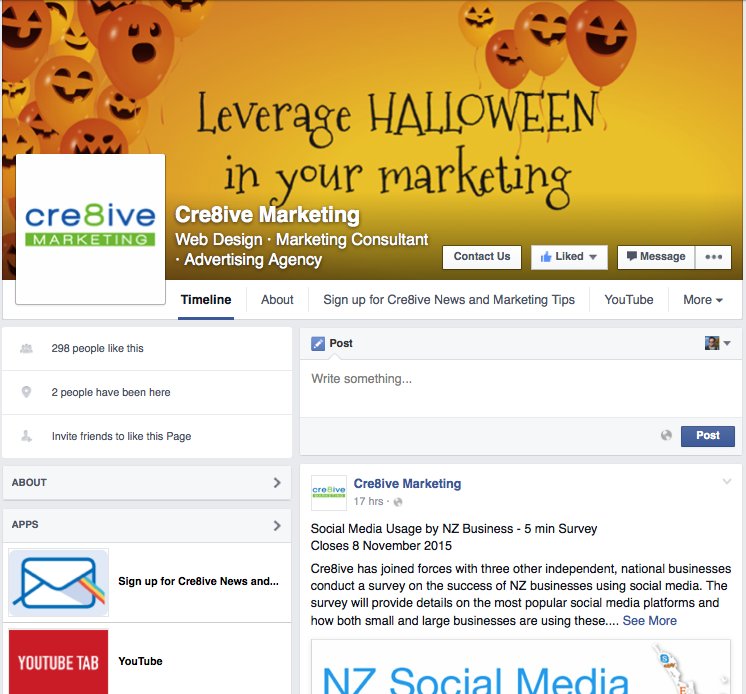
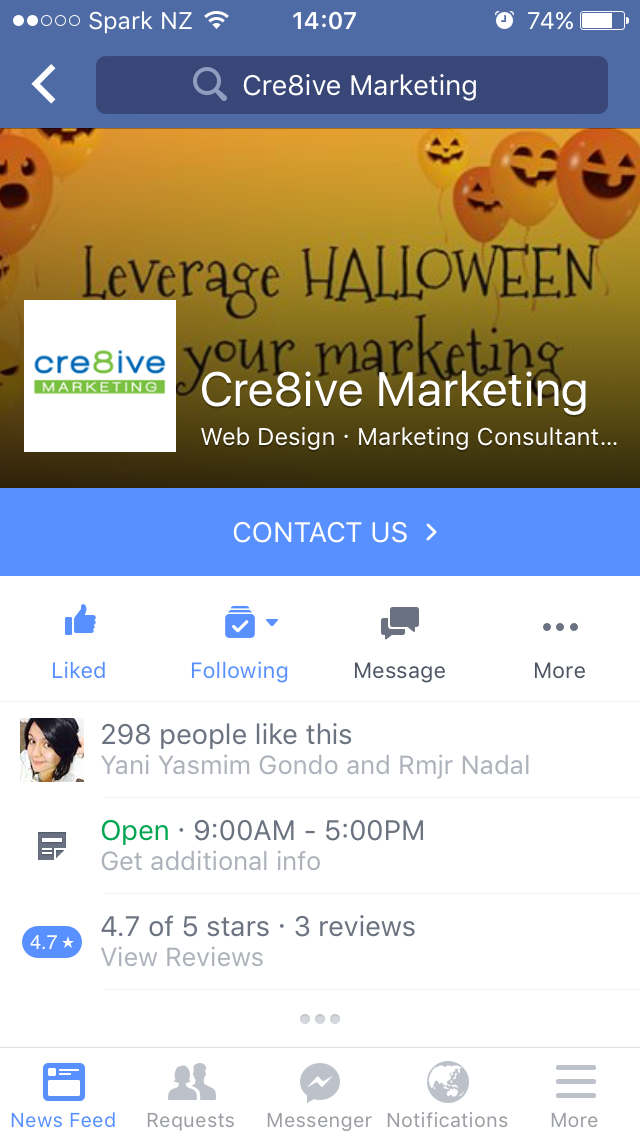
An actual example of Cre8ive’s Facebook cover image that works in both desktop and mobile:

Earlier this year Facebook began rolling out a major update that has impacted all business pages. They are restricting the visibility of ‘overly promotional’ organic posts (ie not paid). Facebook’s goal with the News Feed has been to show people the things they want to see.
An ongoing survey Facebook is conducting revealed that people want to see more stories from friends and Pages they care about, and less promotional content which has had Facebook to change its algorithm to detect these overly promotional Page posts and will restrict their reach.
In other words, the number of your fans who see posts like this will drop significantly.
What makes a post ‘overly’ promotional?
1. Posts that solely push people to buy a product or install an app
2. Posts that push people to enter promotions and sweepstakes with no real context
3. Posts that reuse the exact same content from ads
What should your Business do to combat these changes?
1. Try to focus more heavily on ‘high-value’ posts rather than posting more often
2. Watch what types of content get shared more regularly and post more of that type of content
3. Consider using Facebook Ads to boost important content
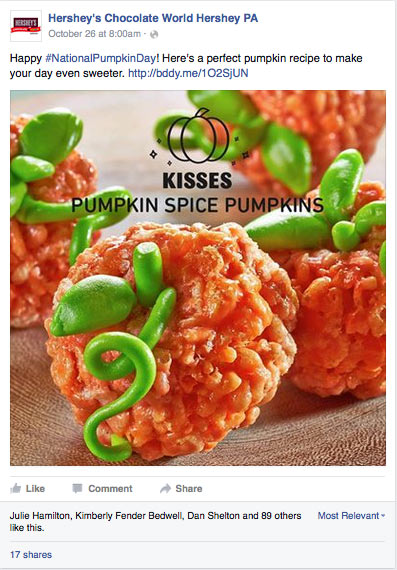
Take a look at this example from Hershey’s Chocolate World. A timely post with a receipe that contains their chocolate which is ‘soft-selling’ as opposed to saying outright “Buy our Chocolate”.
If you are concerned about your posts being seen we can help. Philippa offers one-on-one Facebook training or you can attend group training sessions.