
1. Receive Notifications from Competitor Content
It’s vital that Brands measure their efforts against the competition to know what’s working and things that could improve. One way you can do this on Instagram is to track what content your competitors publish on a regular basis. This information can be used as inspiration for future posts.
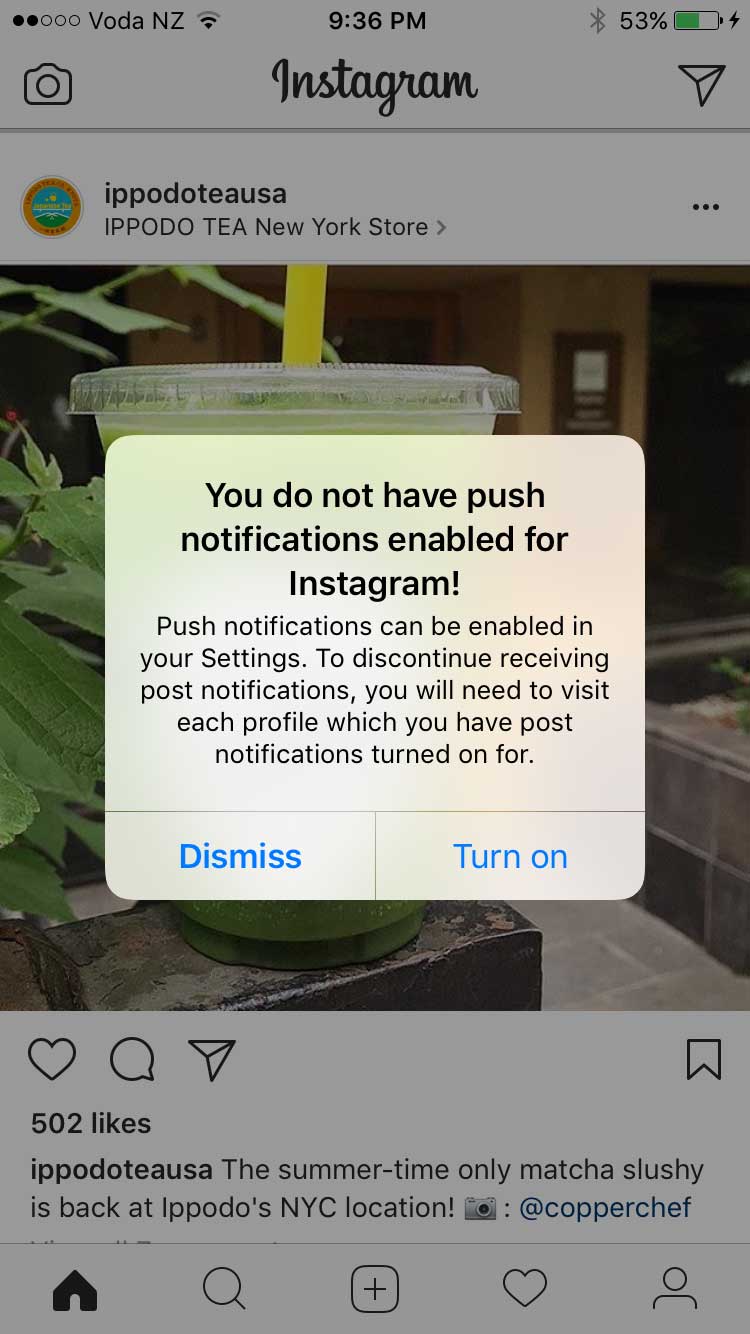
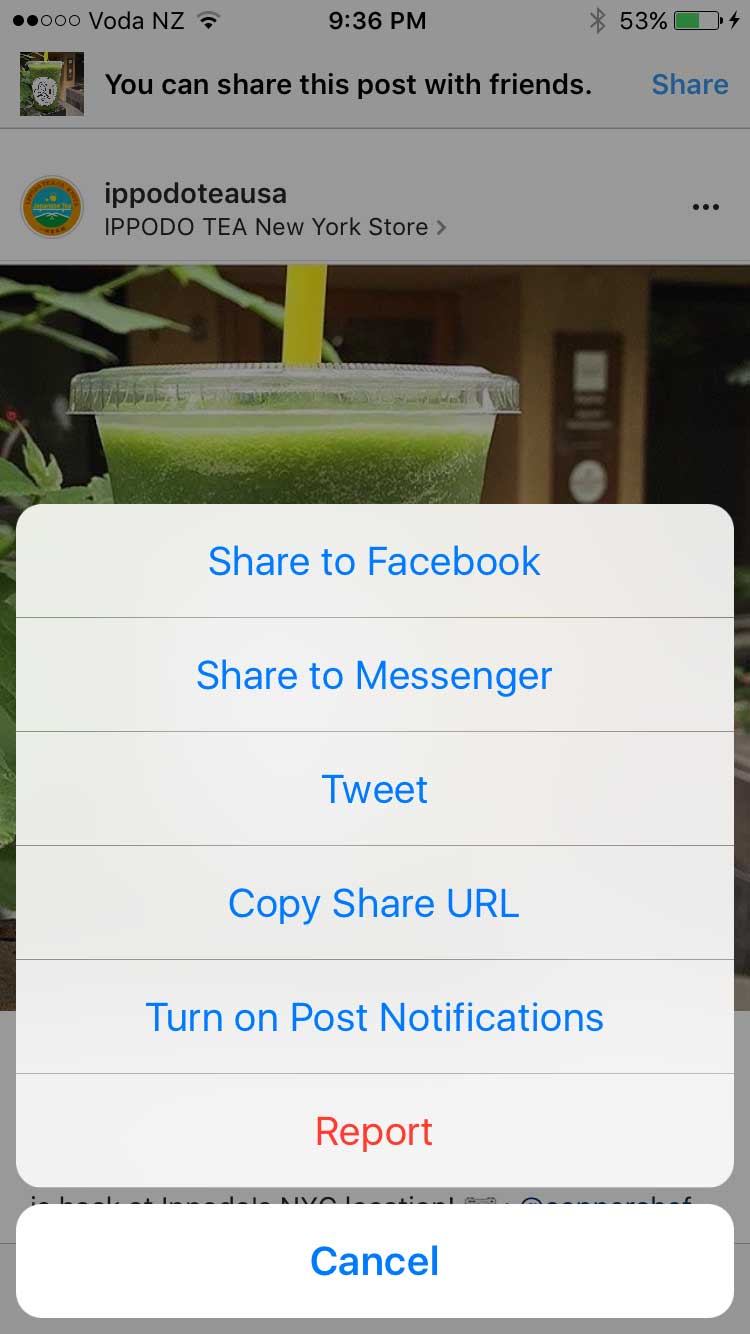
To do this you will first make sure you have Push Notifications enabled for Instagram. Then go to your Instagram and find a post of the Brand you want to track and click on the three dots in the top right hand corner and you will see a list of options – select the last one ‘turn on post notifications’
2. ‘Hide’ Your Hashtags
Every Instagram post you create can be accompanied by a short message or caption and a few hashtags. The hashtags help organise and categorise photos and video content, which aids the process of content discovery and optimisation. It’s better to use the top Instagram hashtags that have an engaging community behind them and are specific to your audience.
Hashtags work well in Instagram – not only do hashtags help spread awareness but they can get your audience engaged. However, some of the general hashtags can be a little boring for users and many brands have simply hidden their unbranded hashtags to avoid taking up too much real estate. Easily hide your additional hashtags by adding a second comment with the tags or by following these steps:
- Click the 123 button on your mobile keyboard (iOS).
- Click return and add either a period, dash or bullet.
- Hit return again and repeat the process a few times to hide your message (Instagram hides after three).
“Posts with at least one Instagram hashtag average 12.6% more engagement than posts without a hashtag”
3. Use Hashtags to Drive Engagement
Instagram hashtags are one of the best ways to grow your Instagram account. Using the right hashtag (or combination of hashtags) can help you expose your brand to large and targeted audiences. In fact, your chances of attracting new followers, getting more likes and increasing engagement are increased by the use of hashtags.
Keep in Mind
· Numbers are allowed in hashtags. However, spaces and special characters, like $ or %, won’t work.
· You can only tag your own posts. You can’t tag other people’s photos/videos.
· You can use up to 30 tags on a post. If you include more than 30 tags on a single photo/video, your comment won’t post.
4. Develop Branded Hashtags
A branded hashtag is a hashtag that’s unique to your business. It can be as simple as your company name, tagline or the name of one of your products or campaigns. Or it can be a hashtag that has nothing to do with your brand name, but has everything to do with your brand identity.
While community hashtags are meant to increase the reach of your message, branded hashtags are designed to connect themes for you and your audience.
A great example is Lululemon’s #thesweatlife
After you tag your post with a hashtag, you’ll be able to tap the hashtag to see a page that shows all photos and videos people have uploaded with that hashtag.
5. Make Your Bio Link Dynamic
You get one clickable link in your Instagram account, but you can change it as many times as you please. Instead of using your home page URL and never touching it again, use the link in your bio to promote your latest content or special promotions.
“Instagram posts with a geotag receive almost 80% more engagement than non-tagged content.”
6. Geotag Content for Higher Engagement
To get your content in front of a larger audience, it’s smart to geotag your images and videos. Users commonly scope tagged locations to follow other people in the same area. By tagging multiple areas with your various content, you spread out your social casting net. But do tag locations where the content belongs.
7. Insert Line Breaks in Your Bio & Captions
Have you ever scrolled through your Instagram feed and noticed a post with an extremely long caption, without any line breaks? Chances are you kept scrolling without giving it a second look.
Hit and then 123 and return button appears!
8. Resize Photos for Instagram
Do you have a photo that you took a while back that would be perfect for Instagram? Don’t just rush to post it. First, make sure that it’s sized and correctly cropped. You can do this manually by cropping your pictures to fit Instagram’s dimensions, but a better solution is to use Landscape.
Landscape is a free tool that resizes your photos to fit perfectly on Instagram and other social networks.
The Facebook-owned photo and video sharing app announced late April 2017 that it reached a huge 700 million users.
It took six months for the app to reach 600 million monthly users in December 2016 and added the last 100 million new monthly active users in the past four months only. To put that in perspective, Instagram took 28 months to reach its first 100 million back in 2013.
Instagram has been aggressively rolling out new features in its battle to compete with rival Snapchat. Back in August 2016, Instagram debuted ‘Stories‘, a near carbon copy of Snapchat’s Stories, which had gained a huge following and threatened Instagram’s grip on users. This move has proved to be a success and has come at Snapchat’s expense. Snapchat saw its growth plummet 82% since Instagram launched Stories.
That feature now has 200 million Instagrammers on board, compared to Snapchat’s 161 million users.
With Instagram Stories, you can bring your story to life in new ways with text and drawing tools that will disappear after 24 hours and won’t appear on your profile grid or in feed.
The Instagram base is now twice the size of Twitter and 200 million ahead of LinkedIn – if your business isn’t represented on Instagram it might be time to get on board.
On the 22 March 2017 Facebook announced that users can now broadcast live video from their desktop or laptop computers. Previously the Facebook Live tool was only available on your smart phone or through third party tools.
How to Broadcast on Facebook Live from your desktop without using Third Party Tools
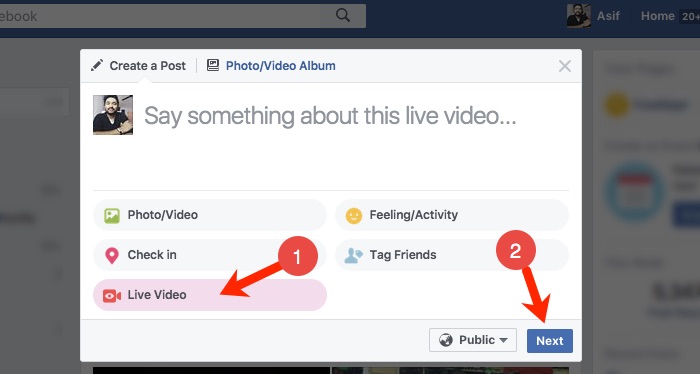
To get started on your live broadcast from a computer, click “Live Video” from the top of your News Feed or Timeline, then follow the prompts to add a description and choose your audience. You will need to download streaming software in order for this to work.
New Streaming Software
Facebook has stated with this new Facebook feature “People can seamlessly share their screens, insert graphics, switch cameras, or use professional equipment in Facebook Live videos. They also have the option to broadcast to Facebook Groups they belong to, Facebook Events they’re part of, or Facebook Pages they manage.”
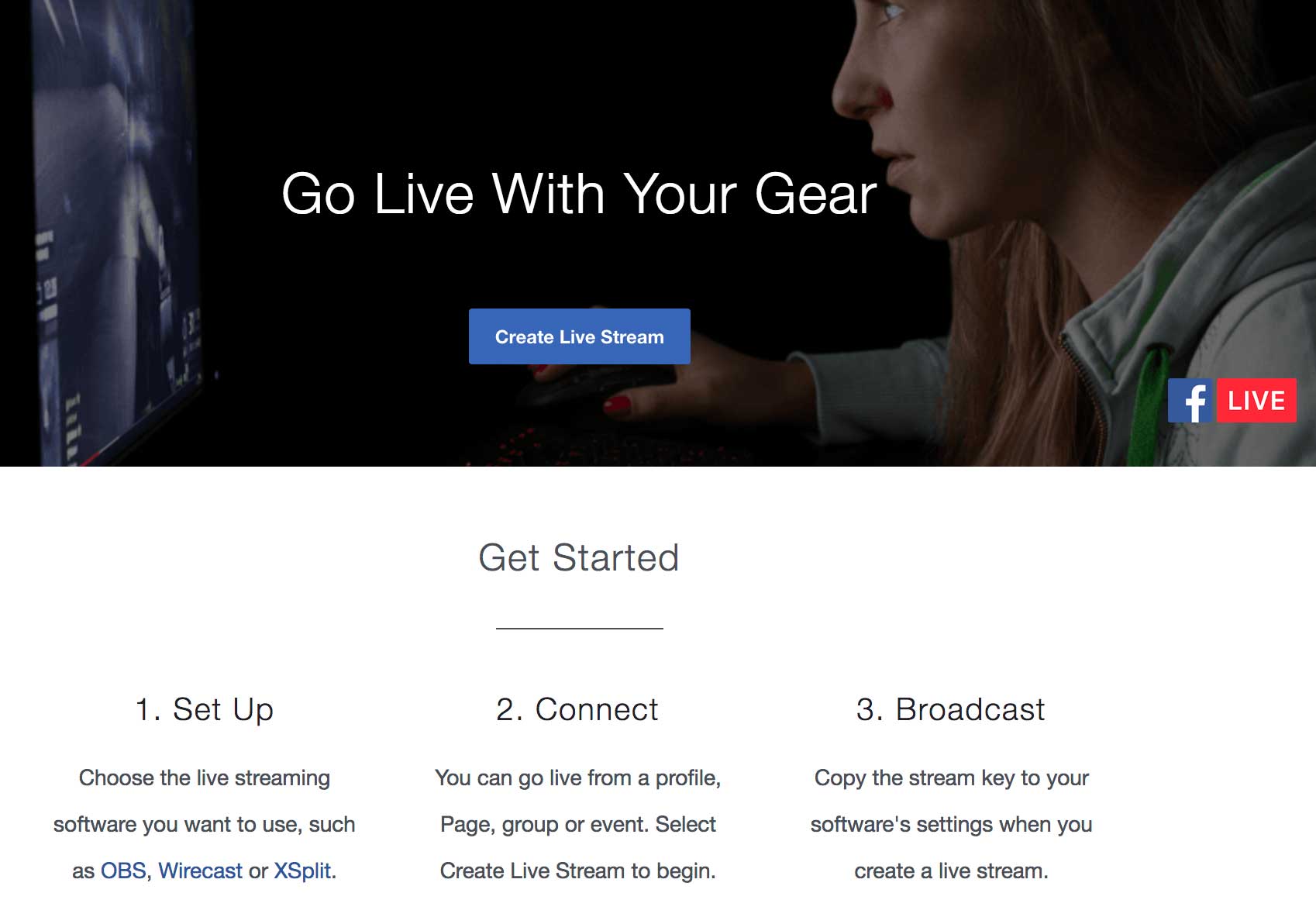
Before you can live stream to Facebook, you’ll need to download streaming software.
Other Facebook Live Tools
There are various other new Facebook Live tools that you can use:
NEW eCamm Live. Only $29.95 one-time fee! Only for Macs, a desktop app that is easy to use, you can screen share, add media, add text, image overlays and can broadcast to your profile or your pages or groups. However, it doesn’t allow you to set up scenes in advance, can’t bring in guests, doesn’t allow you to stream to multiple platforms, no integration with Facebook Events pages, and you can’t schedule live broadcasts.
Third party apps:
BeLive.tv = currently in FREE public beta! Contains Q&A mode where you can display viewer questions and 2-person interview mode; talk-show mode coming.
BlueJeans Network = multi-person video conferencing (up to 100, unlimited on Facebook Live) with desktop and media sharing. $39.95/mo
Zoom Video Communications = multi-person video conferencing (up to 50, unlimited on Facebook Live) with desktop and media sharing. Starting at $54.99/mo
Open Broadcaster Software = Free and open source software for video recording and live streaming. Download and start streaming quickly and easily on Windows, Mac or Linux.
There was an important change to Facebook late in 2016 that you may have missed – Facebook wants to clear users’ feeds of click bait and unscrupulous headlines.
Click bait headlines intentionally omit crucial information. This forces people to click through to find out the answer, but they then quickly return to the News Feed.
By analysing tens of thousands of posts, Facebook confirmed that the two most common click bait styles involve withholding information, examples such as “You’ll Never Believe What Happened Next!” and “You’ll never look at a Barbie doll the same after seeing these paintings.” and misleading or manipulating users into clicking.
With that in mind, Facebook’s algorithm can identify pages and websites posting too much click bait and lower the reach. Their goal is not only to make the News Feed more trustworthy for users, Facebook wants these changes to have an impact on the content managers pushing out information.
Pages aren’t blacklisted forever, so posts can regain a larger audience if they stop publishing click bait headlines.
Facebook has created an article to help businesses with suggestions about what else they can use to avoid click-baiting techniques.

New features to Facebook Live
Facebook released some important updates earlier this year for Facebook Live to give more customisation options and tools for publishers.
- Going Live from Web
People can now go Live on Facebook through a web browser. Previously the Live videos were only recorded on mobile but now you can create content on laptops and desktops. - Live Contributor for Pages
Admins can now assign ‘Live Contributor’ to use Live feature from a Page. Previously, only admins could go Live but with this update, other people can now go Live. For example, an admin can assign a fan of their page to be a ‘Live Contributor’ who can then shoot Live video for this Page. - Insights Updated for Video
Profiles with over 5,000 followers will soon have the video metrics to give improved insight on their video performance. The metrics include total minutes viewed and total engagement. - Live Comment Pinning
Broadcasters can now pin comments to the bottom of a live broadcast. This update encourages publishers to highlight specific comments for their viewers to see. - Video Permalink for Pages
Facebook is rolling out a permalink which directs people to the Page’s video content. It will be accessible via facebook.com/pagename/videos. People who visit the link will be shown a live video if there is a Facebook Live video underway, as well as a library of the Page’s previous live and non-live videos. - Cross-posting of Previously Live Videos
After a publisher has finished recording a Facebook Live video, they can post the video to multiple Pages at the same time.
New Ways to Watch Facebook Video
Facebook announced in February 2017 that they are focused on continuously improving the video experience. Here are some of their latest they hope will make watching video on Facebook richer, more engaging and more flexible.
- Sound to videos in News Feed
Facebook is rolling out automatic sound to play videos in the News Feed. If the phone is on sound, the videos will play with sound. Sound fades in and out as you scroll through videos in News Feed. - Vertical Video
Larger preview of vertical videos in News Feed is now available to everyone watching videos on iOS and Android. You’ll start seeing vertical videos with a 2:3 aspect ratio (as opposed to 1:1) on your News Feed without having to expand them. - Watch and Scroll
It’s now possible to minimise the video you’re watching in News Feed to a picture-in-picture view in the corner of your mobile screen while you scroll down the News Feed to check other stories. - Facebook Video App for TV
New Facebook video app has been announced for TV. The video app for TV helps you to enjoy Facebook videos on a bigger screen. The app will roll out to app stores for Apple TV, Amazon Fire TV and Samsung Smart TV, with more platforms to come.
Want to get traction with your social media posts, email marketing and more? We have created this optimal character length guide for Facebook, Twitter, Hashtags, Domains and subject lines to help you get more engagement.

Posts with 40 characters receive 86% more engagement than posts with a higher character count
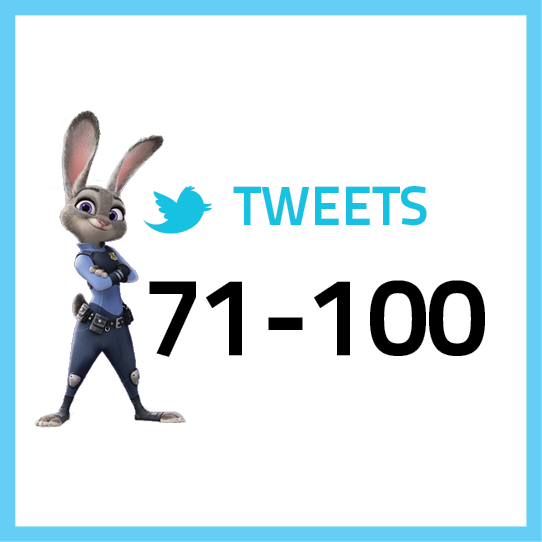
Tweets shorter than 100 characters have a 17% higher engagement rate

HASHTAGS
Don’t use spaces or special characters, don’t start with or only use numbers, and be careful with using slang

EMAIL SUBJECTS
Subject lines containing
28-39 characters get an open rate of 12.2% and click rate of 4% on average
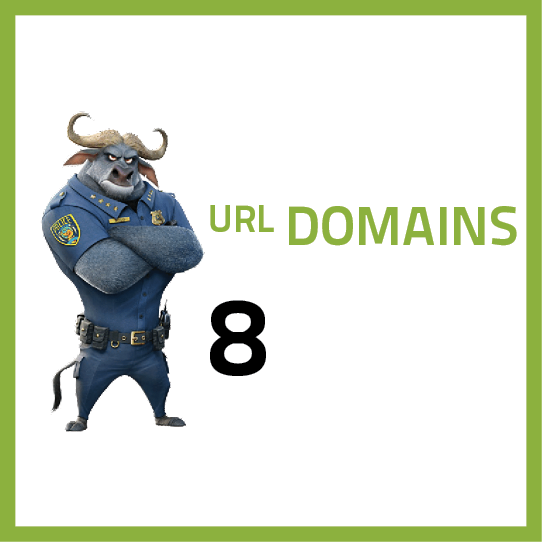
DOMAIN NAMES
The best domain names are short, easy to remember and spell, don’t contain hyphens or numbers, and have a top level extension

PARAGRAPHS
Opening paragraphs with larger fonts and fewer characters per line make it easier for the reader to focus and jump quickly from one line to the next
Facebook tried but failed to purchase Snapchat in 2013. It appears that the new line of attack is to copy.
After successfully copying Snapchat with Instagram Stories – 150 million use Instagram Stories every day, which roughly equals Snapchat’s total user base – Facebook is underway again on its head-to-head with Snapchat, by developing “Facebook Stories”.
Currently being tested in Ireland in the Facebook mobile app, a company spokesperson told Business Insider that Facebook plans to roll-out the “new format” to more countries in the coming months.
Facebook Stories works identically to Instagram Stories (and Snapchat Stories). You add photos and videos to your personal “story” for your friends to tap through, and everything you choose to share disappears after 24 hours. These won’t be shown in the News Feed or on your timeline, and like Instagram and Snapchat, you can reply directly to someone’s story with a direct message. You can also add selfie filters and Facebook’s version of Snapchat geofilters to photos and videos.
Here are some of the latest statistics and facts on LinkedIn.
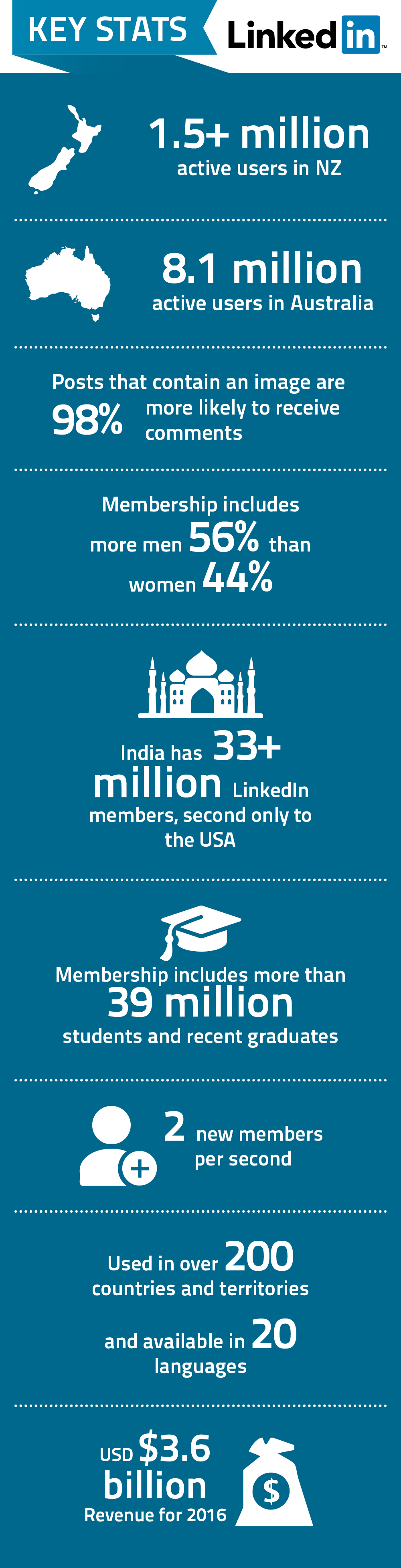
You might also like to check out the latest statistics on Facebook, Youtube and Twitter
Here are some of the latest statistics and facts on Facebook.
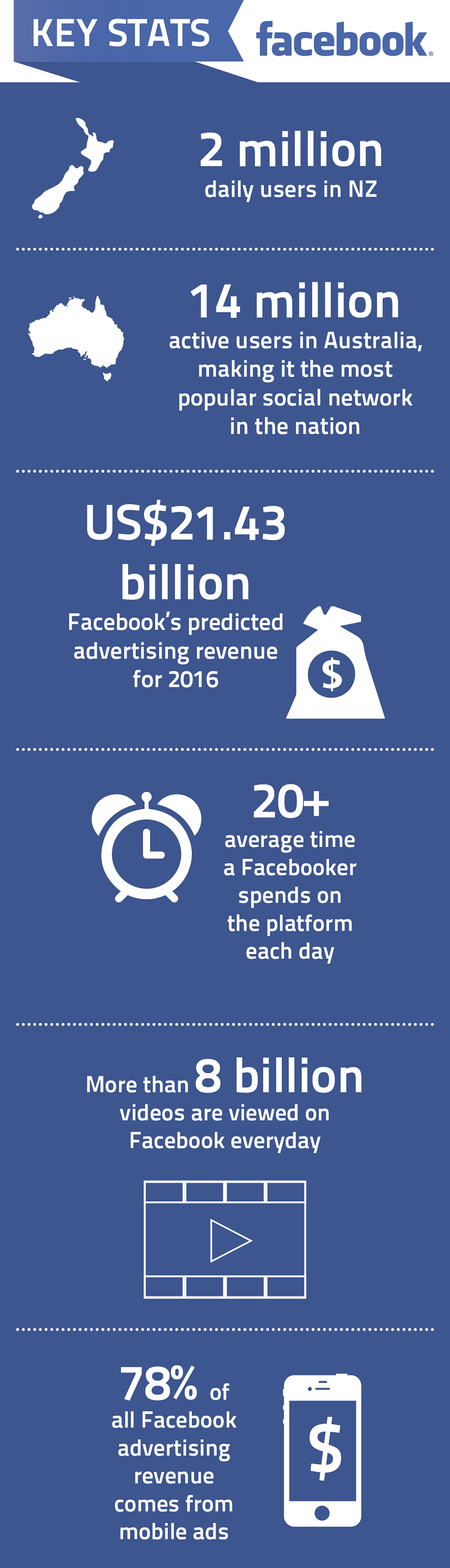
You might also like to check out the latest statistics on Youtube, LinkedIn and Twitter
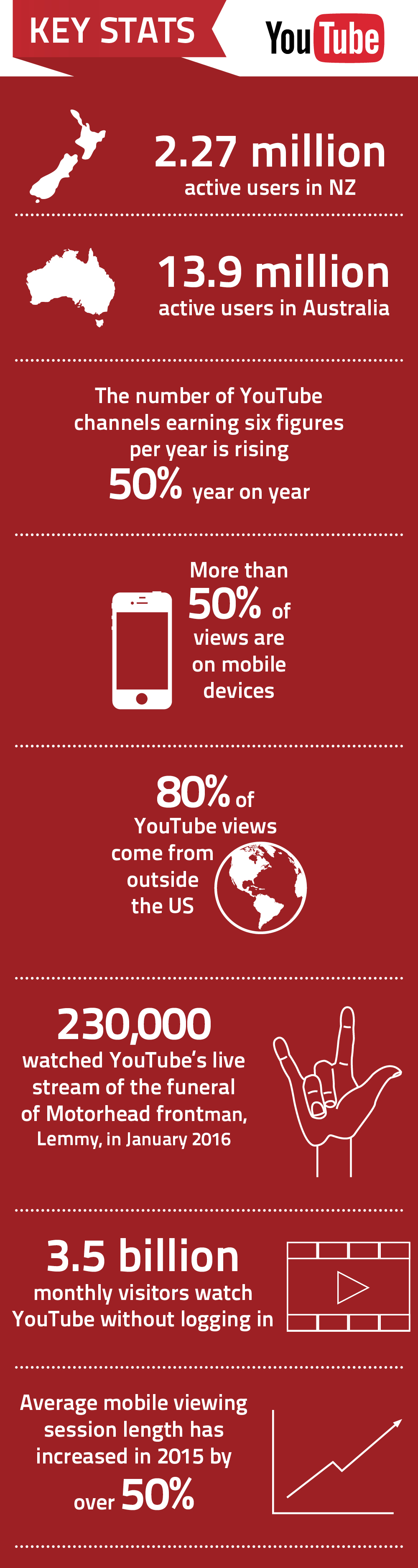
Here are some of the latest statistics and facts on Youtube.
You might also like to check out the latest statistics on Facebook, LinkedIn and Twitter