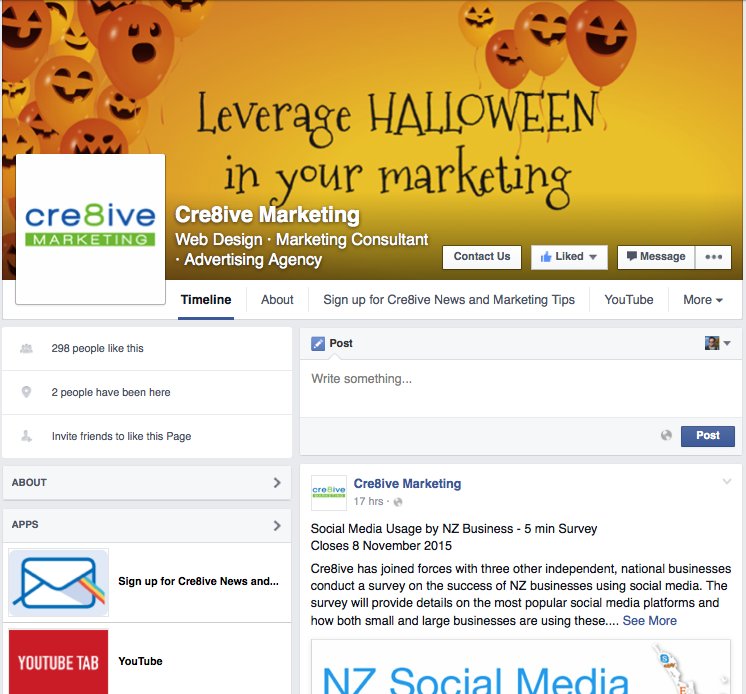
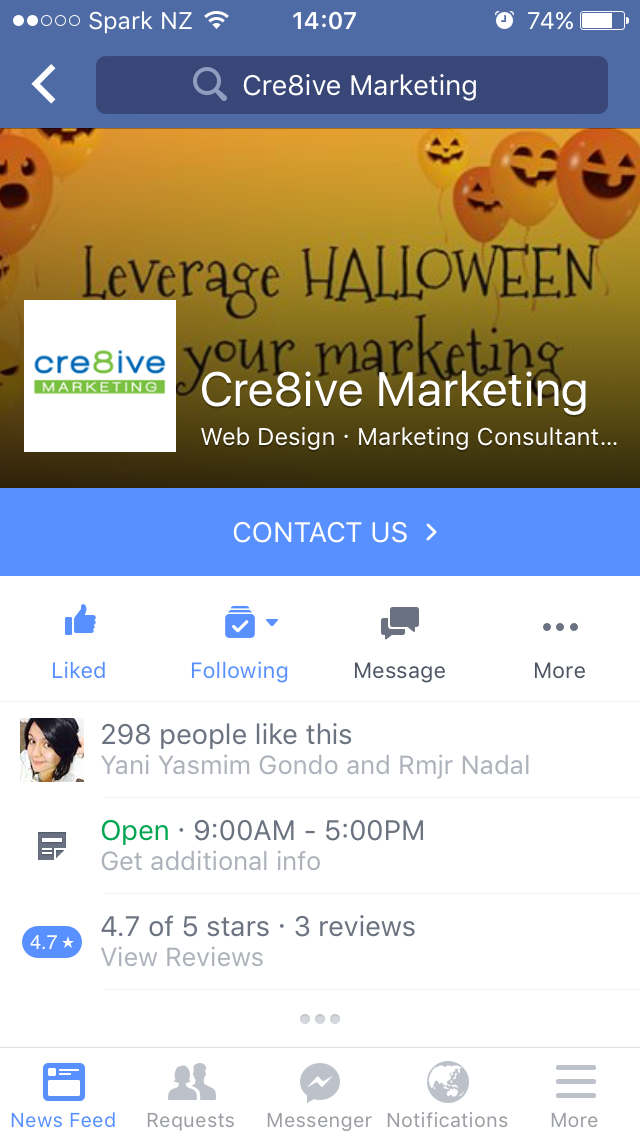
If you’ve been on Facebook recently, you may have noticed the bold new design changes in the Pages layout. Overall, the new appearance is more user-friendly and customisable for the business.
Here are the changes you need to know about the new Facebook layout:
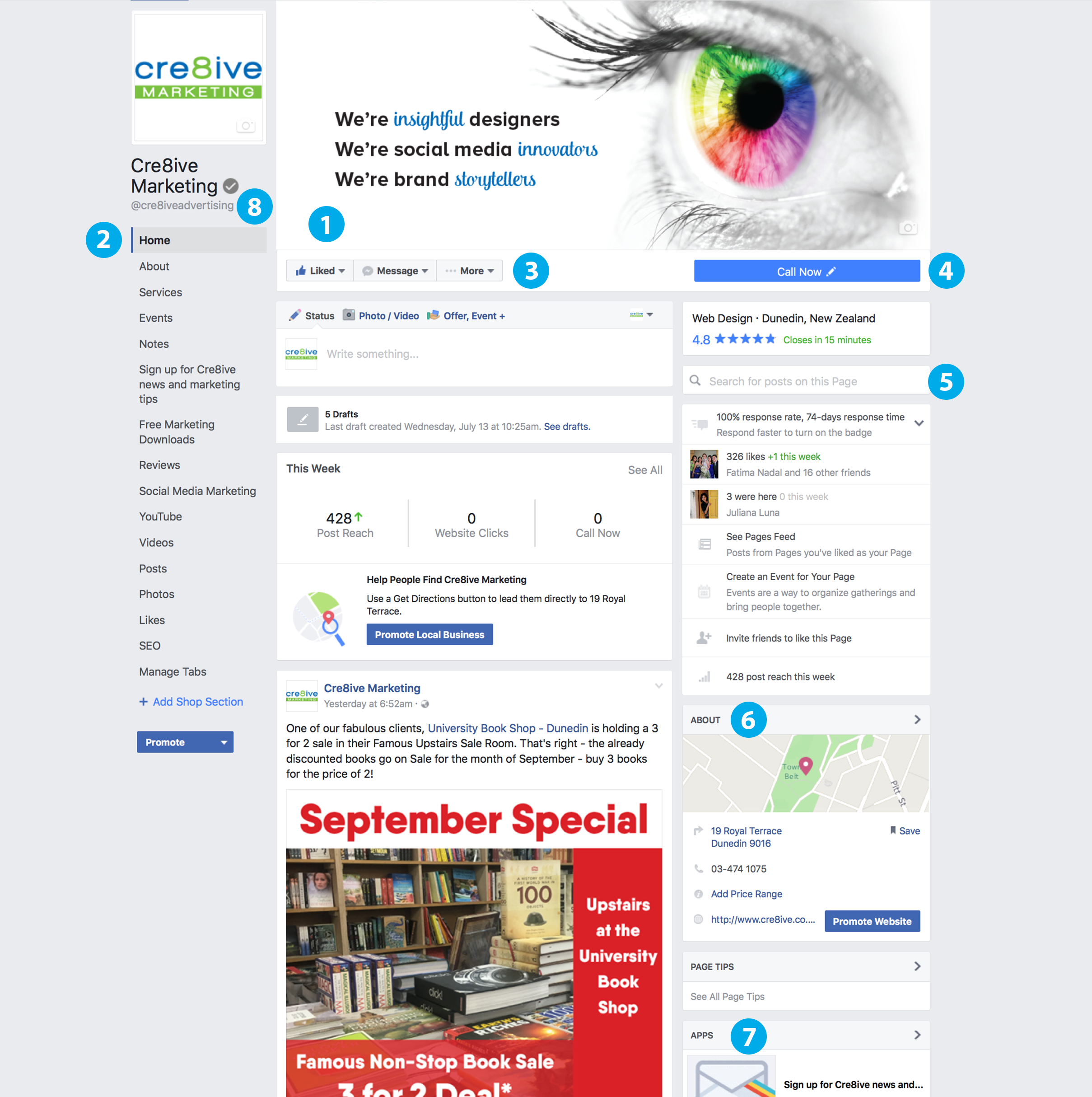
- Visible area increased on cover photo
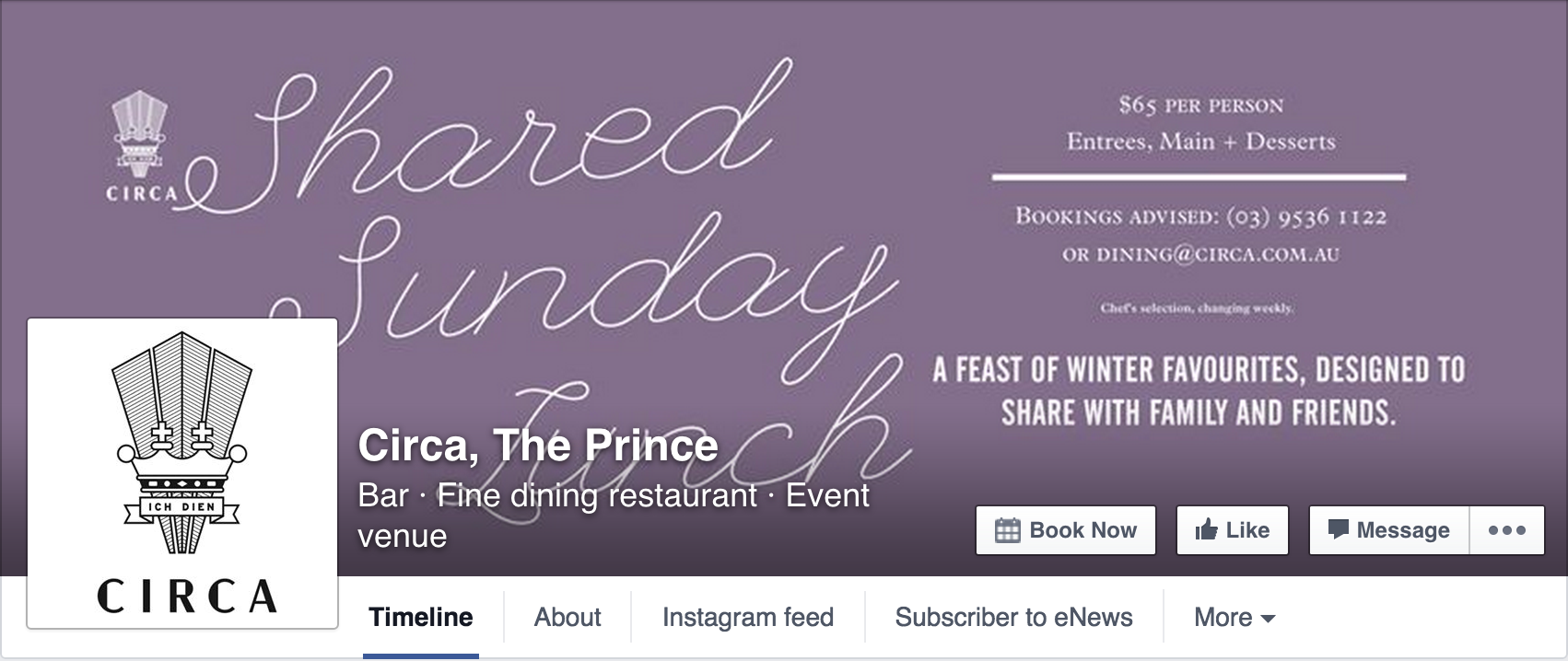
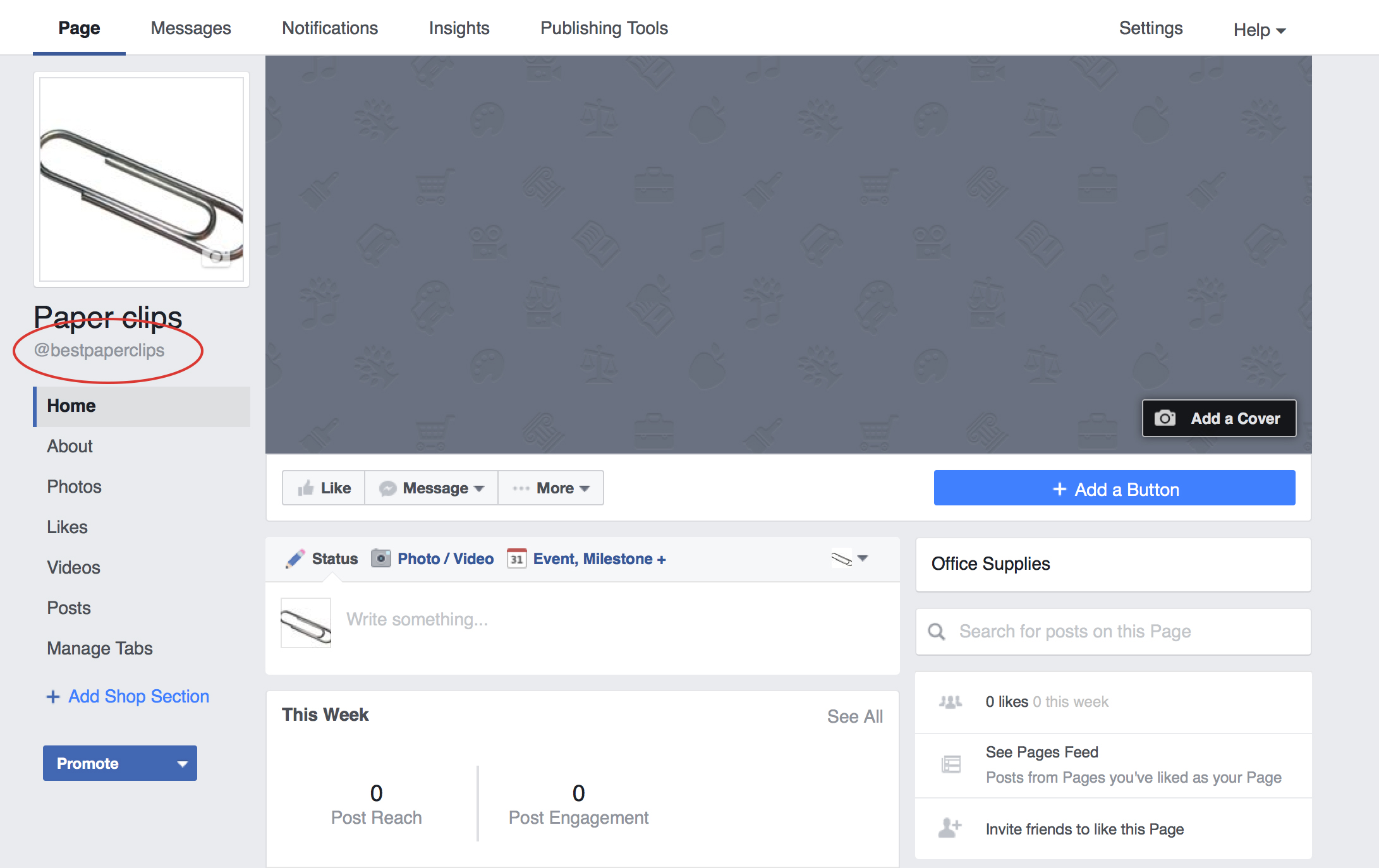
The most prominent and exciting change we think is on Facebook’s new Page layout is that Facebook has moved the profile picture and business name off the cover image region to the left-hand column, increasing the ‘action’ area. Make sure you take advantage of this new size.
- More visible Page Tabs
The More Tab has been removed and the Page Tabs now appear below the profile picture with every single tab listed. This may seem a little overwhelming to your audience so we recommend removing the ones that aren’t necessary. - Interaction buttons have moved
The Message and Share buttons have moved from the corner of your cover photo under the ellipsis and next to the Like Button to the space underneath the cover image; giving your audience one convenient location to interact with your Facebook Page. - Call-to-Action button is bigger and has moved
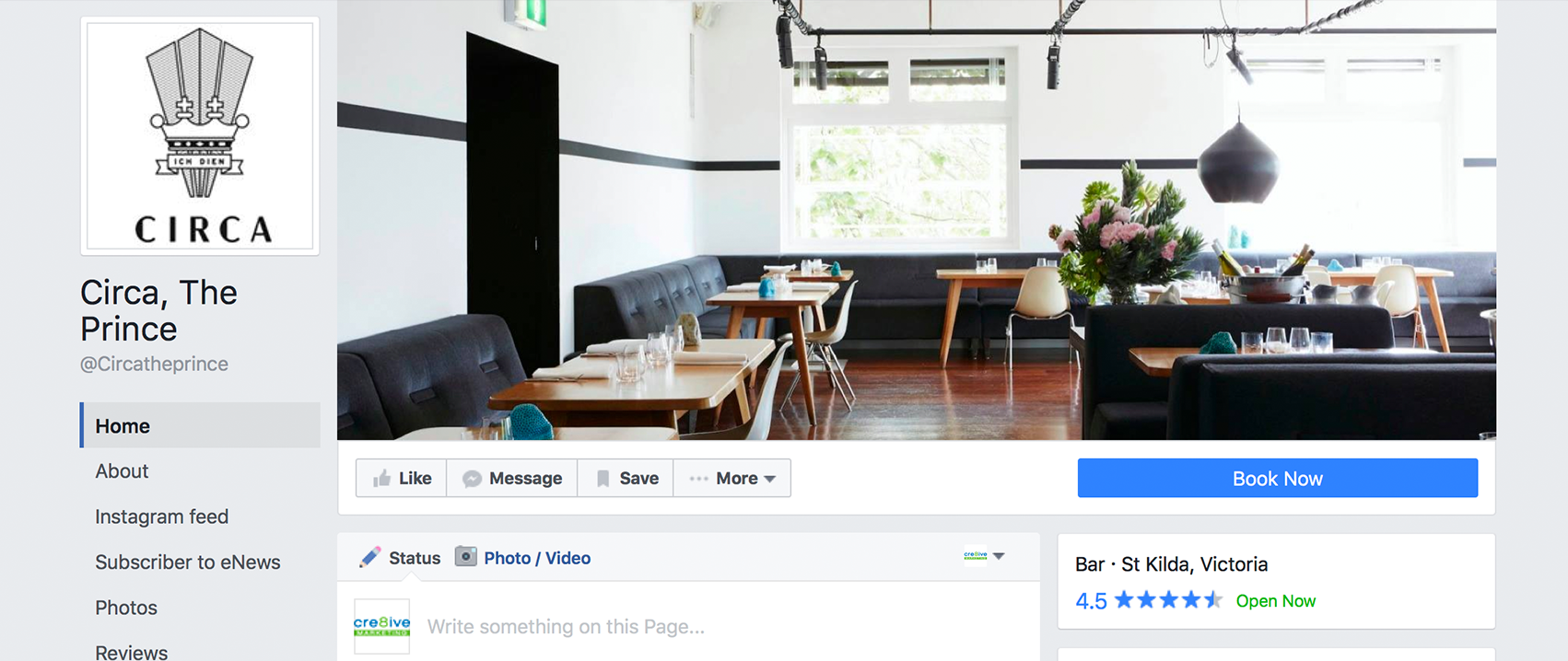
Another significant change is the Call-to-Action button which is now a long blue strip under the cover photo. The button is also customisable to how you want your audience to reach out to you. Rather than just having the option to contact, the public can now go straight to an app, make a reservation, shop, watch a video or more with just a click of a button. - The new search bar allows you to search for posts on a Page
- The About section has moved to the right-hand column
- Your most important apps appear on the right, with images.
With the long list of tabs and apps on the left, Facebook has used the right column to showcase your most prominent ones. - The addition of @[username]
Below the name of your business you will find an @ symbol followed by your Facebook username. This handy addition tells your audience how they can search for you on Facebook or tag you in a post. Learn how you can customise your Facebook username here.
There’s also a few not-so-apparent changes. Notably, your Page’s profile picture will display at 160×160 pixels on computers and 128×128 pixels on smartphones. Additionally, your Page’s cover photo displays at 828 x 315 pixels on computers, 640 x 360 pixels on smartphones and will load fastest as a JPG file that’s 851 x 315 pixels and less than 100 kilobytes. However, for profile pictures and cover photos with your logo or text, you may get a clearer and better photo by using a PNG file.
Keep an eye out for Cre8ive’s insights for more social media sneak peeks and updates.
If you created your Facebook Page few years ago, you would have gotten a hard-to-type link that looks something like this:

This is not ideal and should be updated to make it easier for users to find you. In addition, if you refer visitors to your Facebook page on printed material, consequently requiring them to type out each character of your URL to find you, a vanity URL will simplify the process.
There are several ways to change your Facebook URL.
Go to http://www.Facebook.com/username to set your vanity URL. It will take you to a page that looks like this where you can select the page you want to edit and make the switch to a more attractive URL.
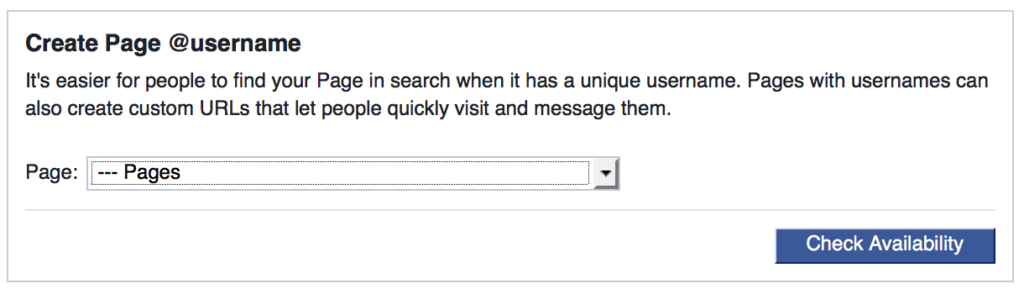
But be careful as you can very easily change the username of your Personal Profile to the one you wanted for your Fan Page. Also note that you can only change your Page’s username once, so make sure it’s the one you want. You may want to check on other social media platform that you are either on or considering creating a presence to ensure consistency in URLs between platforms.
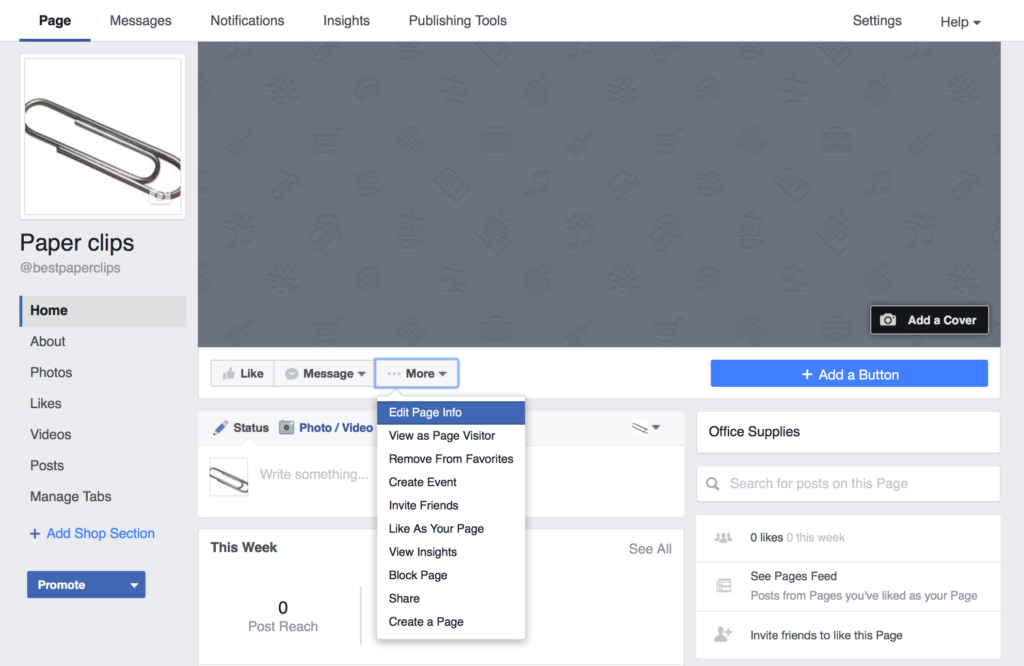
Another way you can change your page’s URL is by going to the page and selecting Edit Page Info under the More tab. Here you can change the name, URL, category, description or contact information of your Page.
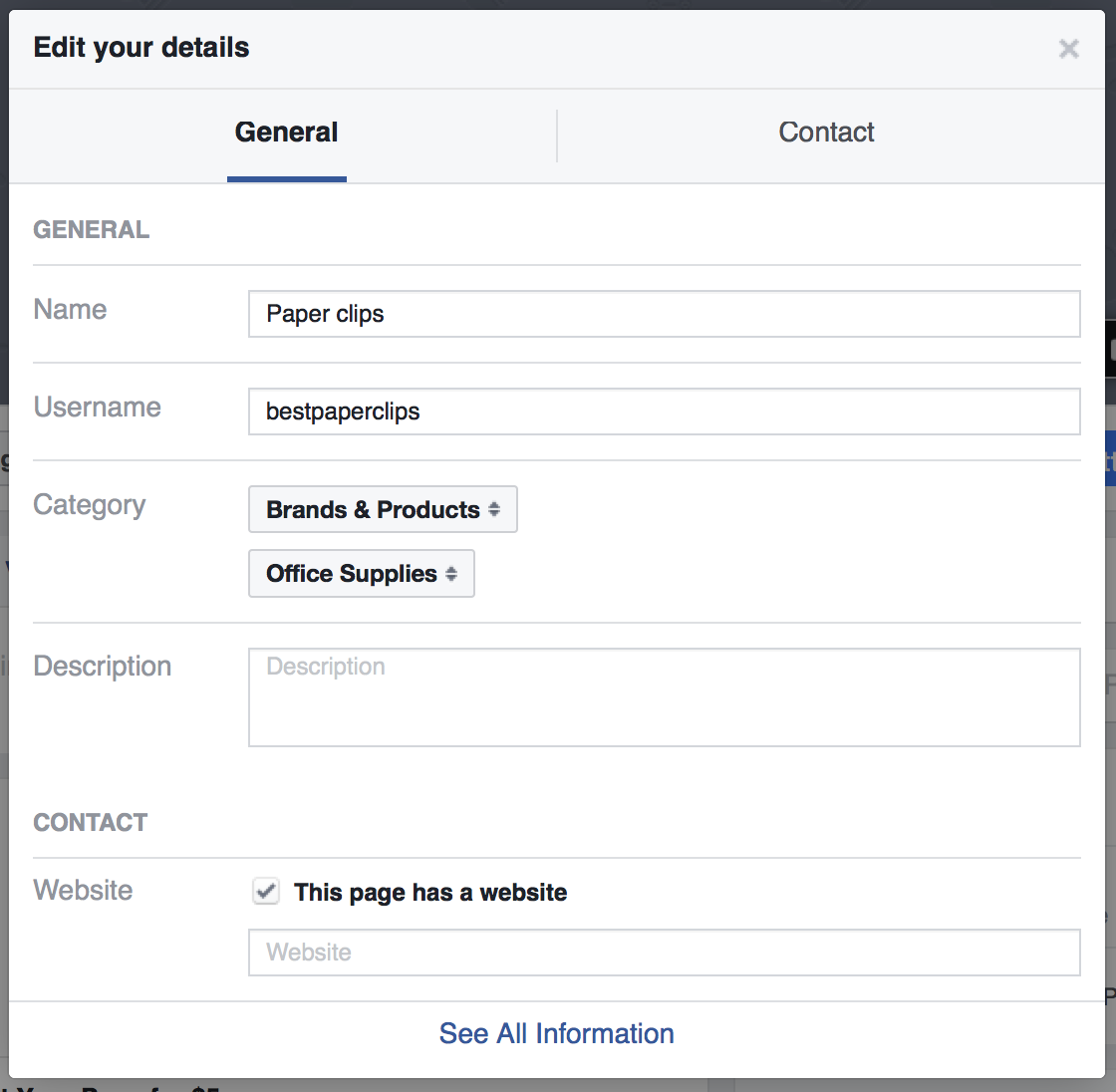
Within seconds you can take your page’s URL from this long URL
to this branded URL link

You will also see the username in the left hand column change as well. This means that people can now easily search or tag your page in a post by putting the @ symbol before the name of your page.
If you are starting a Fan Page the process is even simpler. After choosing your page type and category, a box will immediately pop up where you can set your page’s custom URL.
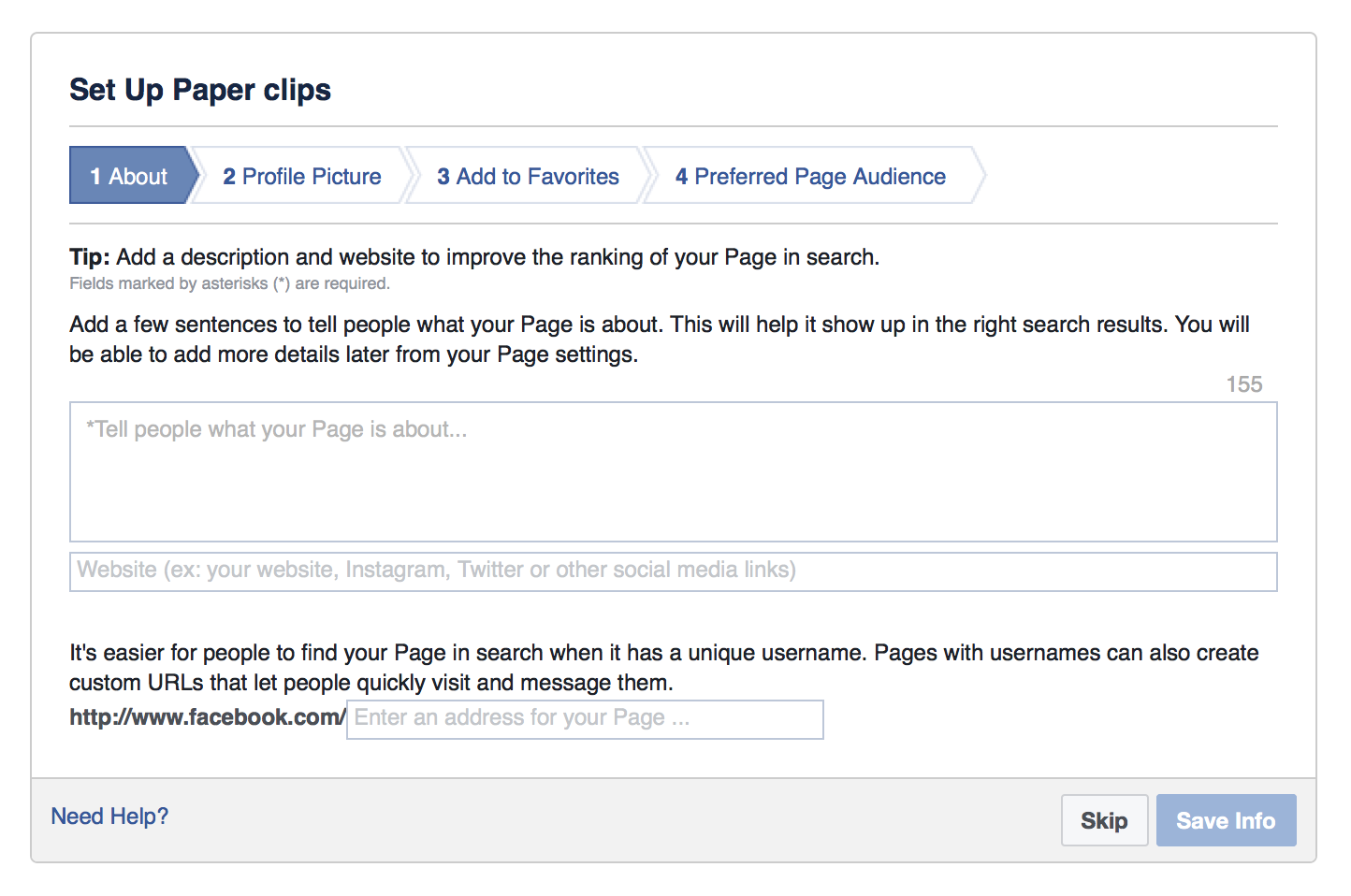
Given how easy it is to claim your Facebook Page’s URL, there is no excuse not to make the change.
Your Facebook cover image is critical. At a glance, it can showcase your business and range of products/services to prospective clients. With increased mobile usage it is important to take into account how this image will look on smaller screens. The following diagram illustrates the right size and visible areas for Facebook cover photos both desktops and mobiles.
For desktops, the cover photo should be of 851px width and 315 px height. Having an image with resolution higher than 815px x 315 px is not an issue, as Facebook will reduce the size proportionately.
Visible and Non-Visible Areas for Mobile Viewing:
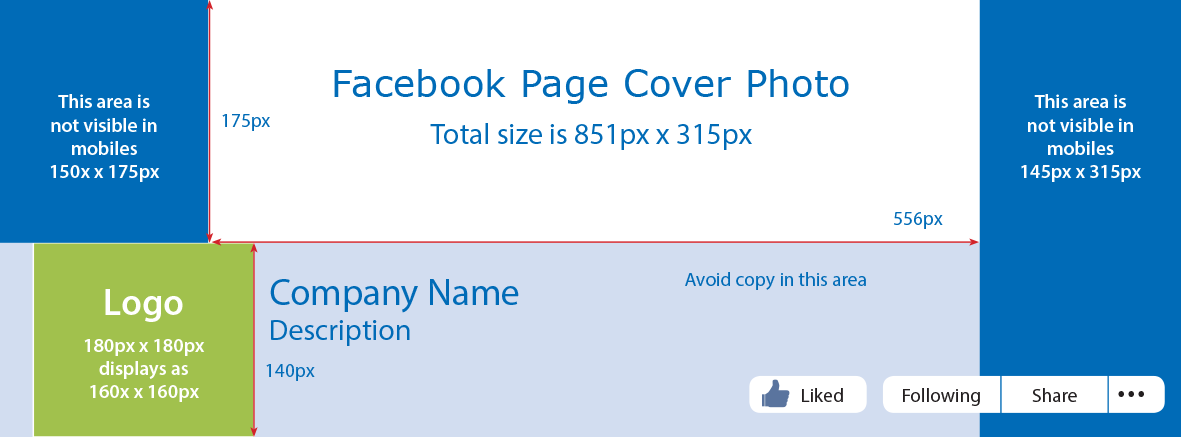
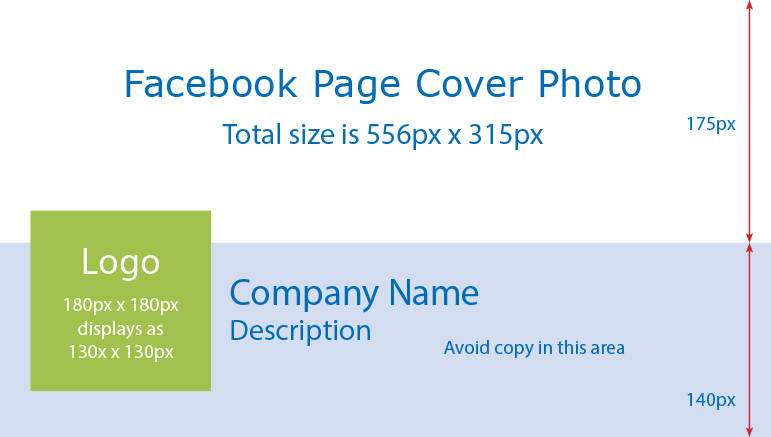
Points to be noted from the diagrams above are:
Green Area – Your business page profile picture or logo goes here. Avoid putting any text or image in this region, as this will be not visible in neither desktops nor mobiles.
Blue Area – The areas which are not visible in mobiles. Many people are not aware of this and tend to make the mistake of putting text or images here.
White Area – This is the only area which is visible in both desktops and mobile.
If you need help with creating images that work for your Business call Philippa 03 474 1075 or email
An actual example of Cre8ive’s Facebook cover image that works in both desktop and mobile: